How to Use draw.io
to Edit Your SAE Map
This page shows you how to use draw.io to open your System Automation Engagement (SAE) map template, change it to match your business, and save your own copy.
You don’t need to have used draw.io before. Each step below has a picture of what you’ll see.
First Things First. Get draw.io.
draw.io, also called diagrams.net, is the free tool that opens your map. It needs no account and works on any computer. You can download the app or use it in your browser.
Download the Desktop App
Install the app for Windows, Mac, or Linux. Your map files then open with a double-click, and the app works offline.
Or Use It in Your Browser
Nothing to install. Open draw.io in Chrome, Safari, Edge, or any other major browser, then open your map inside it.
Good to know: a .drawio file is a diagram, not a document. If you double-click one before draw.io is set up, it may open as a page of code. Open draw.io first, then choose Open Existing Diagram and pick the file, or drag the file onto draw.io in your browser.
Edit Your SAE Map
New to draw.io? Its own beginner guides and videos cover everything else.
1
Open Your Map
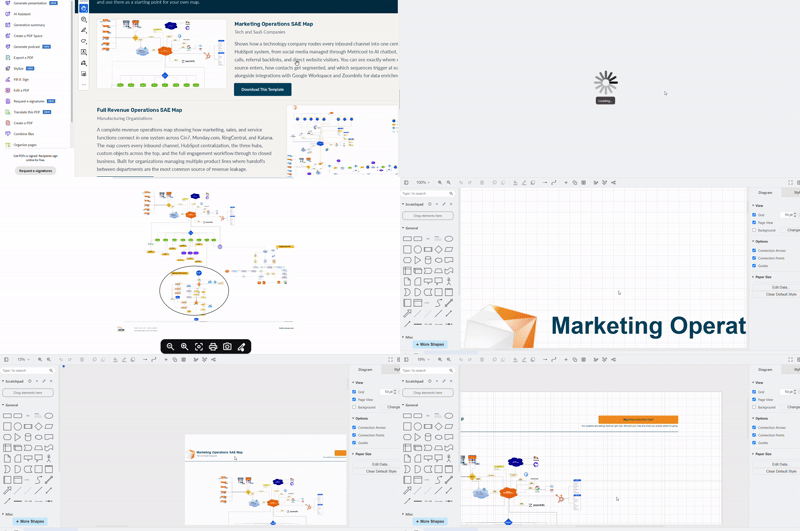
In draw.io, choose Open Existing Diagram and pick your file, or drag the file onto the page. It opens ready to edit. Drag to move around and scroll to zoom.
Follow the map from the first box. It traces the same path a customer takes, from finding you to becoming a lead, talking to sales, buying, getting set up, and getting billed. Each box is a tool you use or a choice you make. Each line is a handoff, where the work passes from one tool, or one person, to the next.
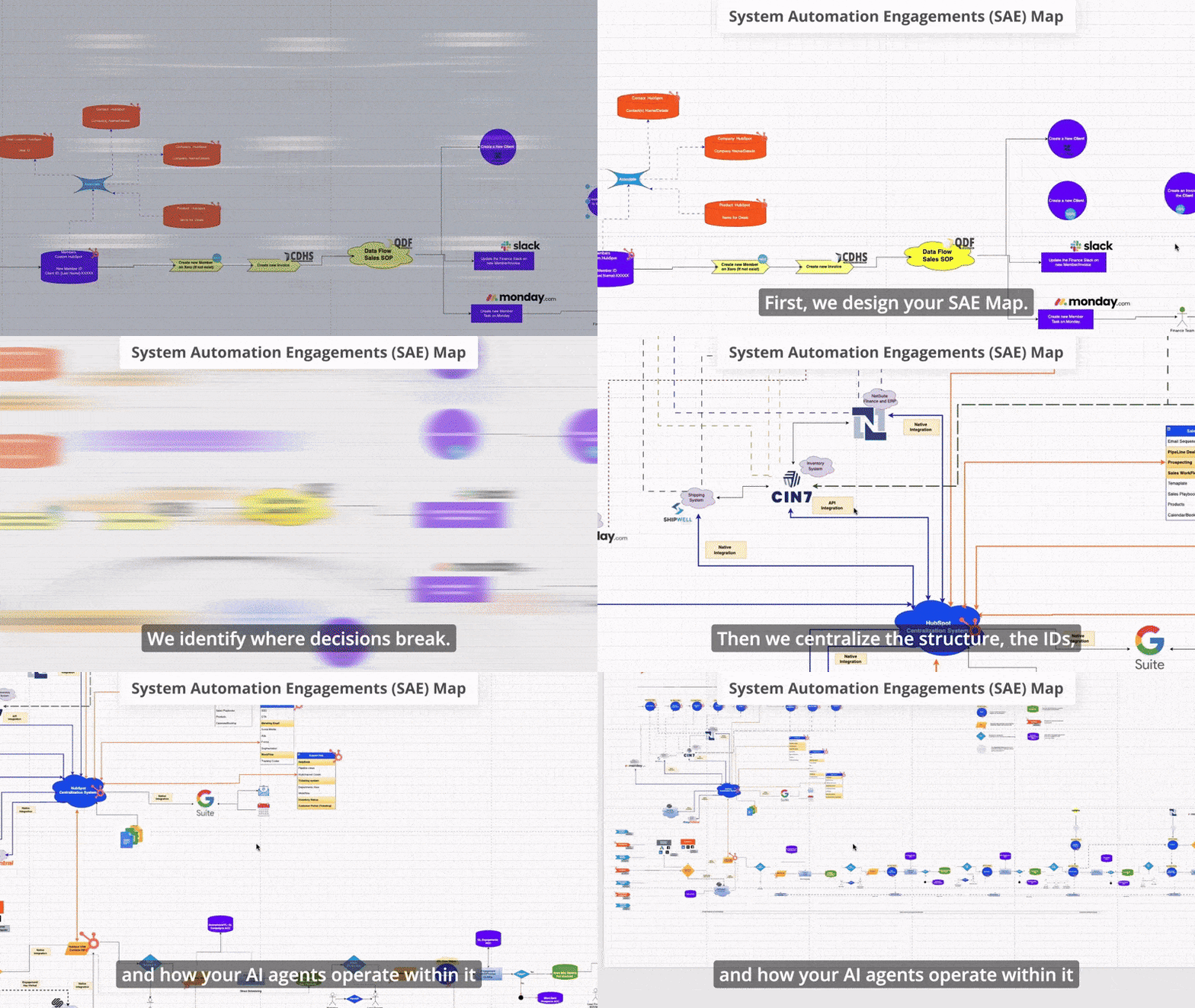
An SAE map, open in draw.io.
2
Swap In Your Own Tools
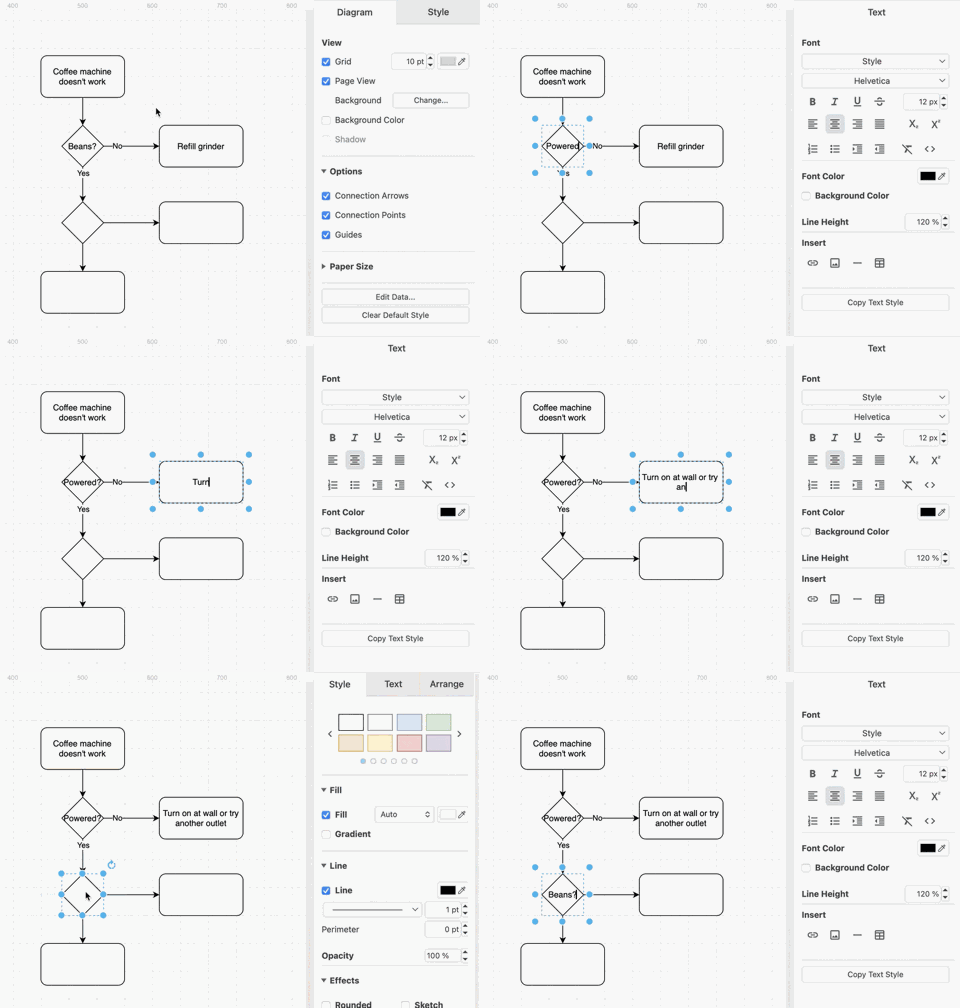
Double-click any box and type to replace its label. Each template shows the tools a real Fruition RevOps client used, so change each one to the tool your team runs.
Press Enter to finish, or Shift + Enter for a second line.
Double-click a box and type.
3
Add, Remove, and Connect Steps
Drag a shape from the panel on the left onto the canvas to add a step. Click a box and press Delete to remove one.
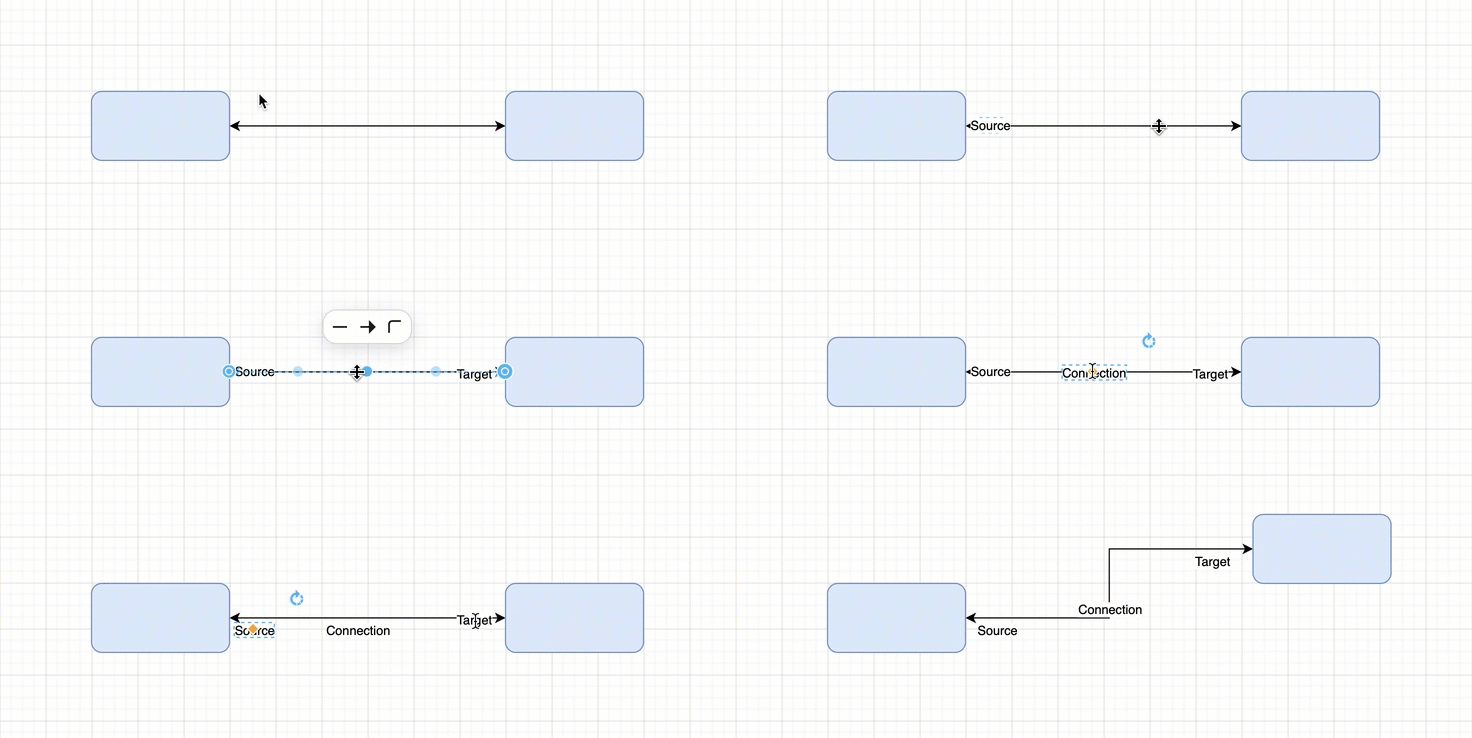
To connect two boxes, hover over the edge of one until arrows appear, then drag across to the other.
For every line, ask what happens next. A tool might pass the work along on its own, or a person might have to do it by hand. Try this on your own flow.

- Someone fills out your form. Check whether the lead lands in your CRM on its own or someone copies it in.
- A deal closes. Check whether onboarding starts by itself or someone has to remember to kick it off.
- A customer goes quiet. Check whether anyone gets a reminder or the deal just sits there.
Any handoff that needs a person to remember is a weak spot. That’s where leads get forgotten and money slips through the cracks. Color your weakest handoff orange so it stands out.
Hover an edge, then drag to the next box.
4
Save Your Copy
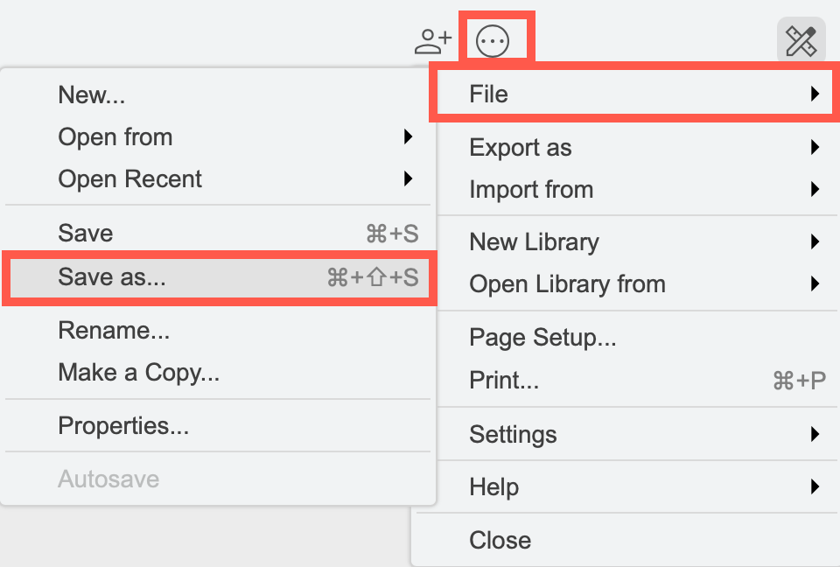
Open the menu, choose File, then Save as.
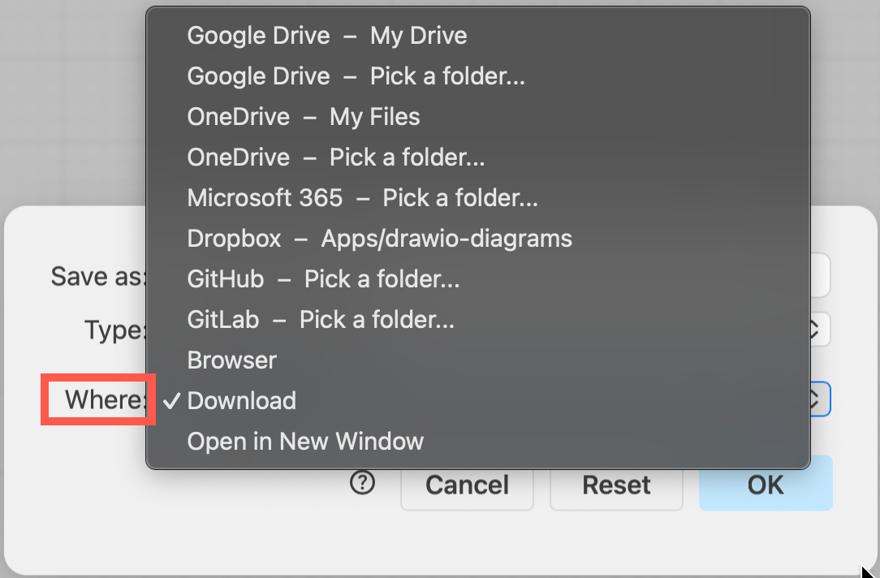
Under Where, pick where to keep it. Download saves the file to your computer and needs no account. Google Drive keeps it in the cloud, and draw.io may ask you to sign in the first time.
Menu, then File, then Save as.
Download saves it to your computer.
If It Asks You to Sign In
Signing in is only for saving to a cloud drive. To skip it, choose Download under File, then Save as, and the map saves straight to your computer.
What Is draw.io?
draw.io, also called diagrams.net, is a diagramming tool that runs in your browser or as a desktop app. Your map is yours to keep. Nothing lives on anyone else’s server unless you save it there, and you can export it as an image or PDF, or come back and change it anytime.
Want Us to Do It for You?
Mapping your whole revenue path takes time, and the weak spots are easy to miss from the inside. Talk with Fruition RevOps about what your map shows you. There’s no obligation attached.