Lead Sources and Importing Process in CDHS
Welcome to ASTERRA's Lead Sources and Importing Standard Operating Procedure. This covers how records get into the CDHS, where they come from, how to import them, and how to check that the import worked. By the end, you will be able to run an import end-to-end on your own.
1 Four Lead Sources Overview
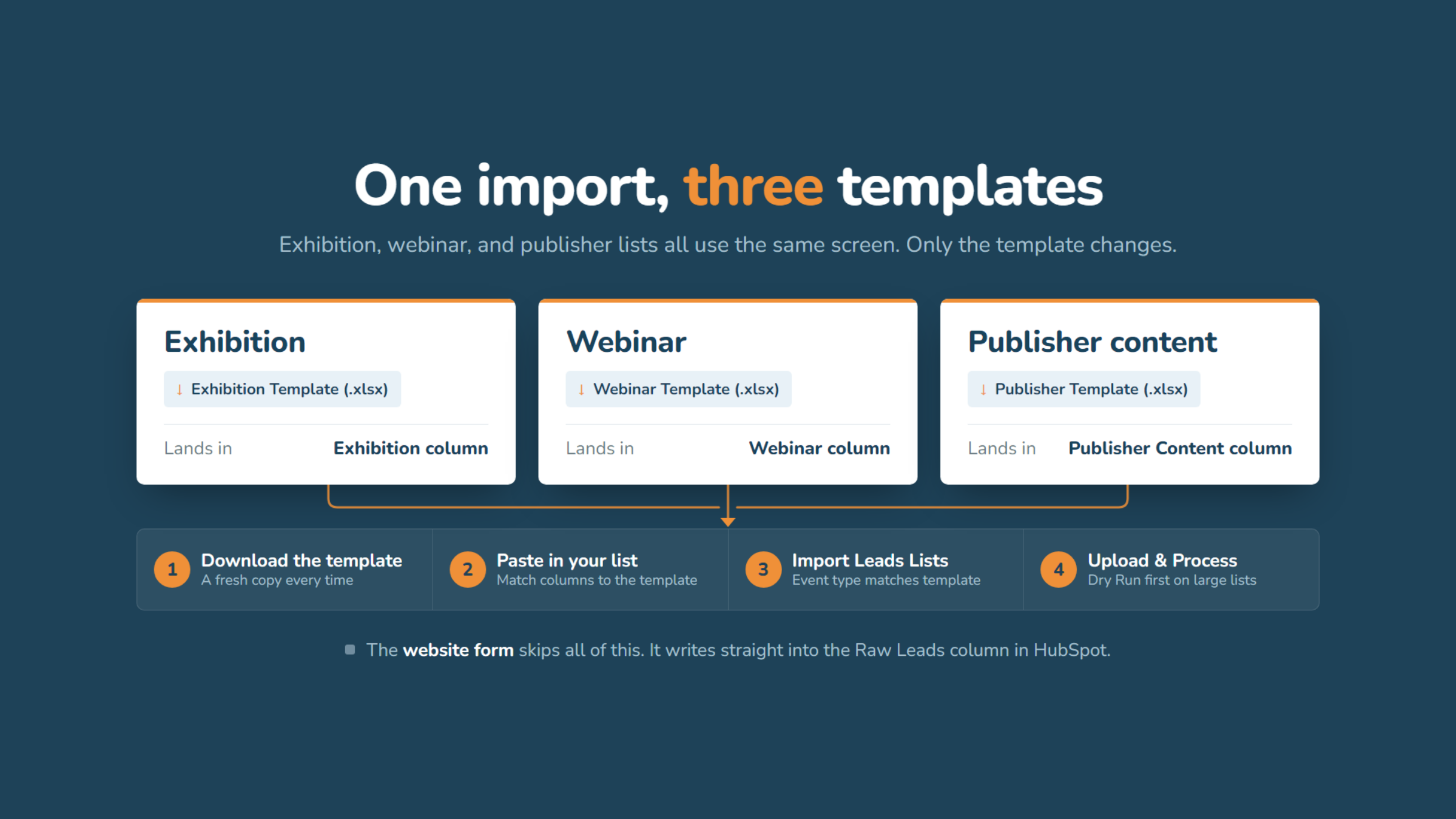
ASTERRA records come from four sources: the website form, which goes directly into HubSpot's Raw Leads, and three Excel lists from exhibitions, webinars, and publishers that you import. All three follow the same steps; only the downloaded template differs. Website forms have a separate SOP.
2 Where to get started
Make sure you have the CDHS login, HubSpot access, Zoho access (for verification), the source list from the event or publisher, the event's real name and date, and the HubSpot Event ID if adding to an existing event. If you are looking for a website form submission, another SOP covers the web form.
3 CDHS Decisions Admin Login
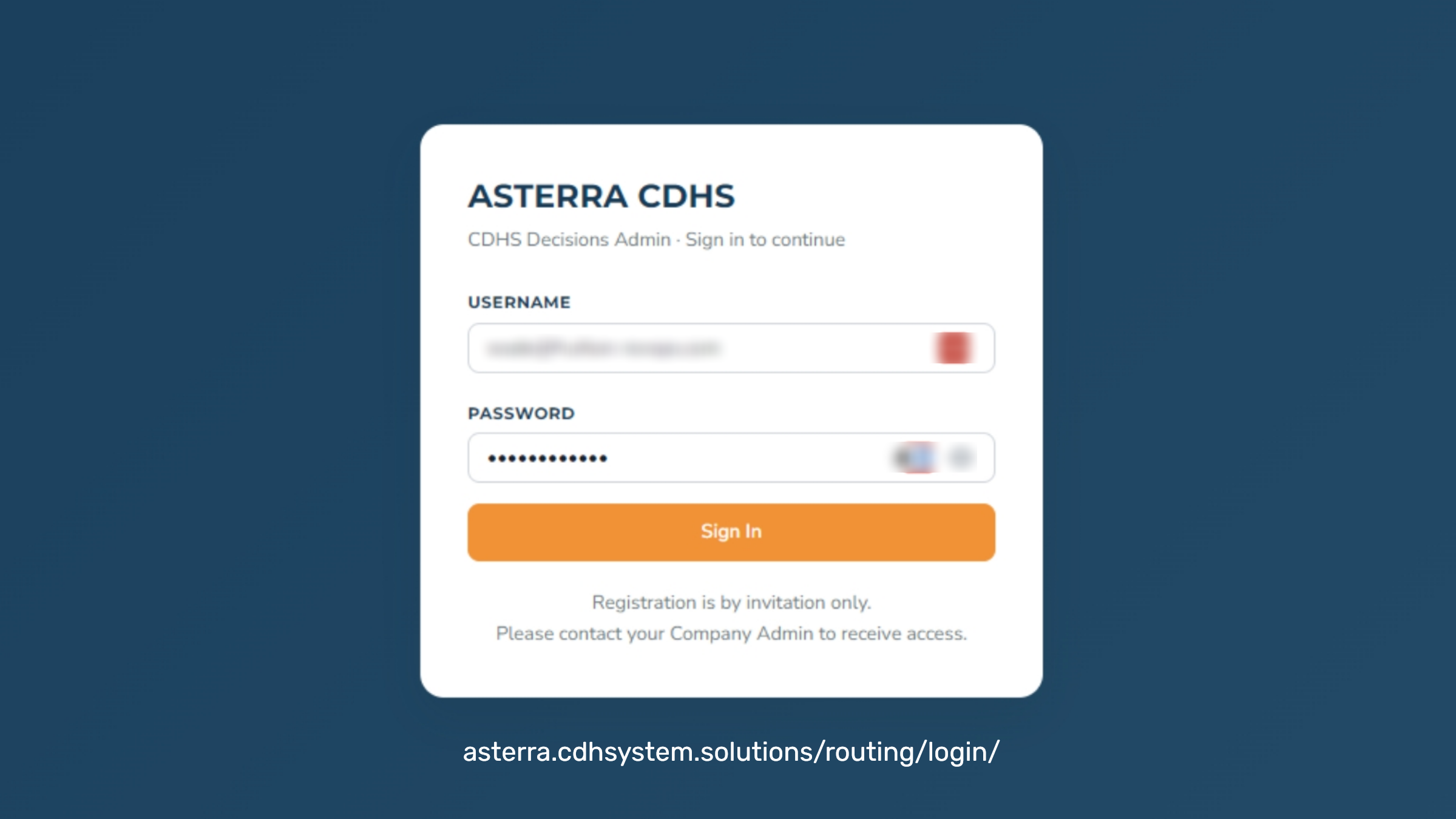
Start by logging in to the CDHS with your work email and password. Registration is by invitation only. If you do not yet have access, contact your Company Admin.
Goto Login Click Here
4 CDHS Statistics Dashboard
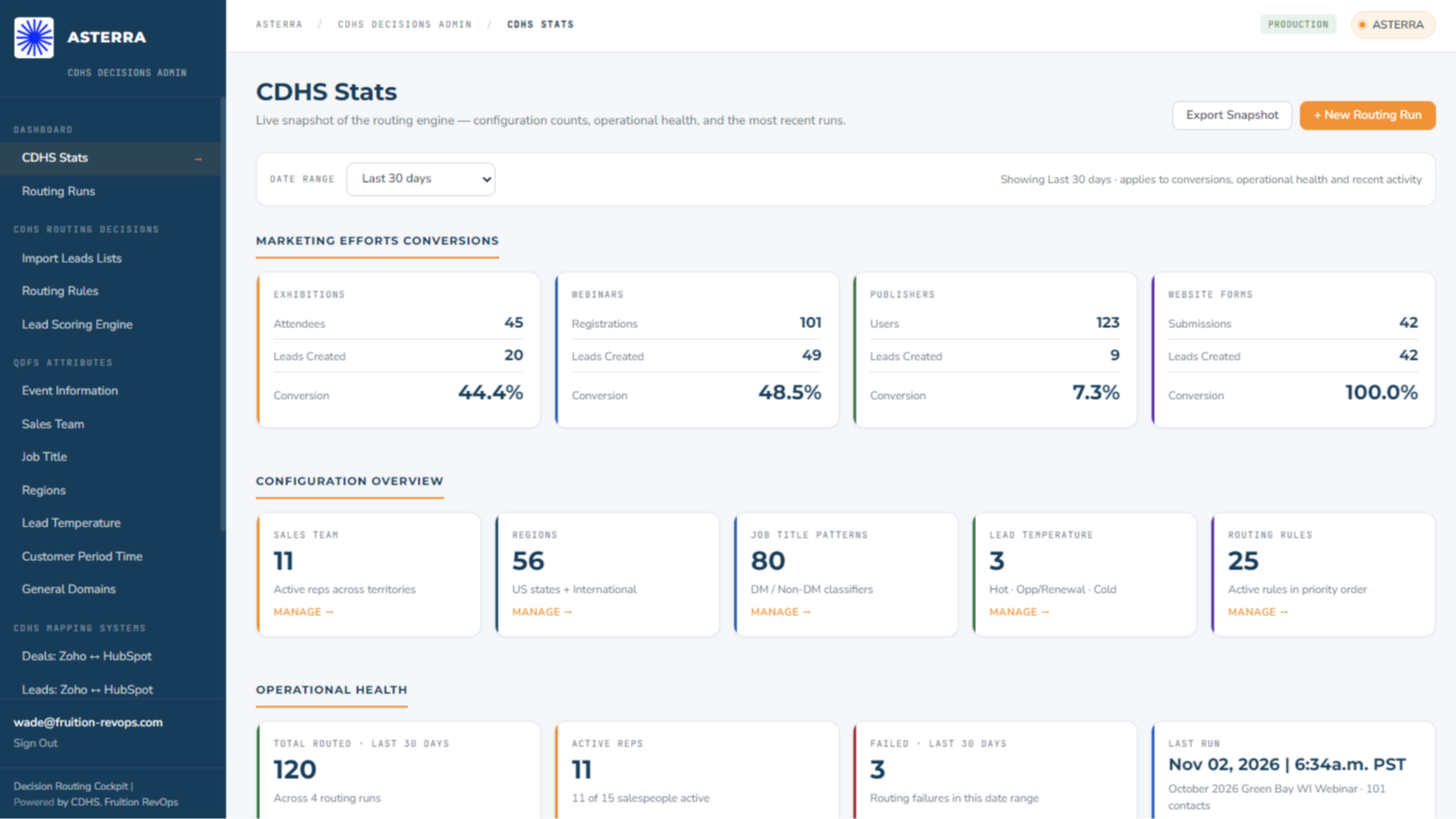
After signing in you land on CDHS Stats. This is a live snapshot of the routing engine. It carries your configuration counts, operational health, and the most recent runs. You do not need anything from this screen to run an import, but this is where you verify numbers.
5 Comprehensive Lead Import Management
The 'Import Leads Lists' page is central to our lead management. It facilitates lead uploads and integrates with our routing engine. The system evaluates each contact against rules, ensuring efficient ownership assignment for timely follow-up and conversion.
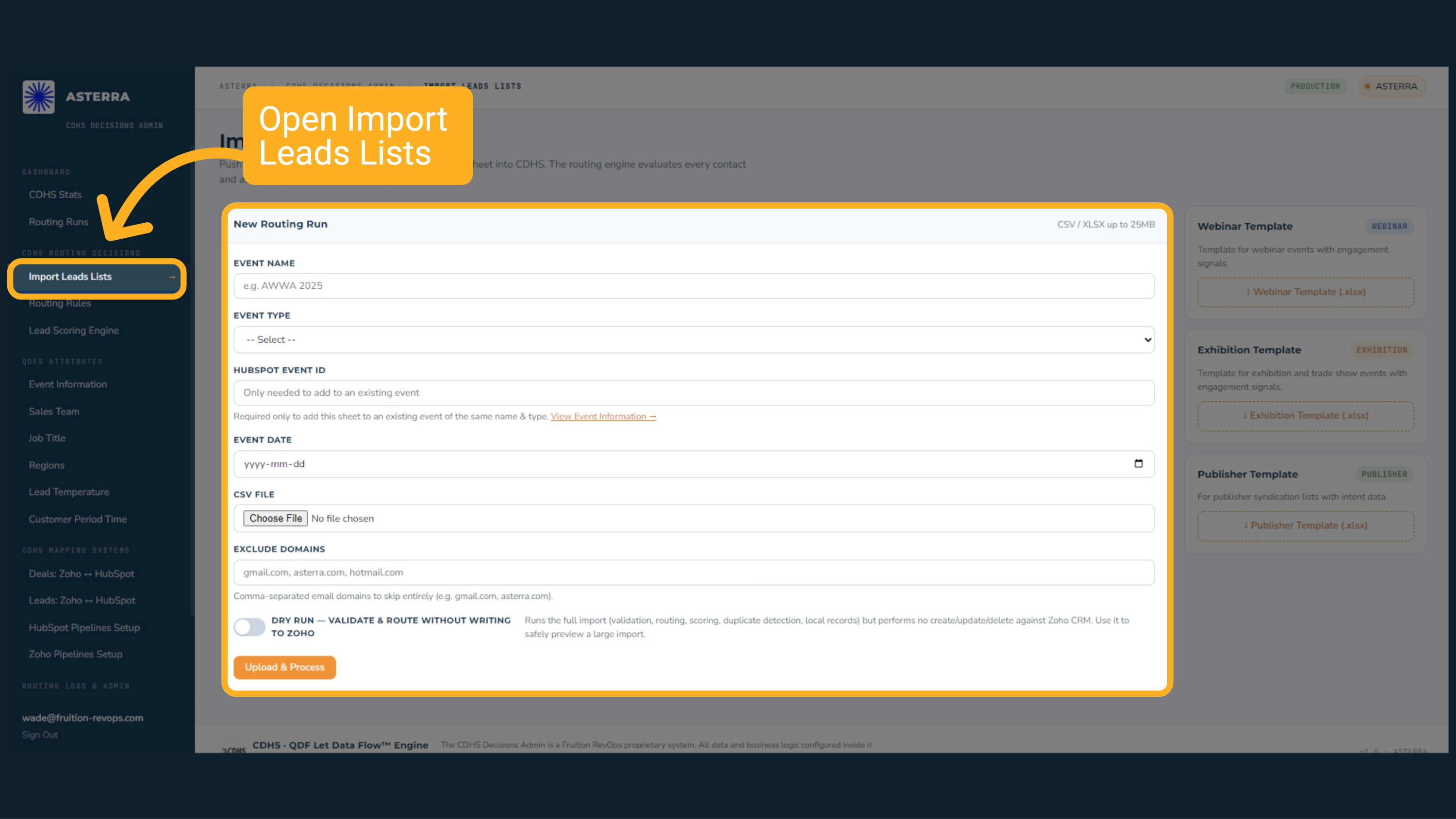
6 The Template Comes First
Before importing, remember that the correct template comes first.

7 Download the template that matches your list
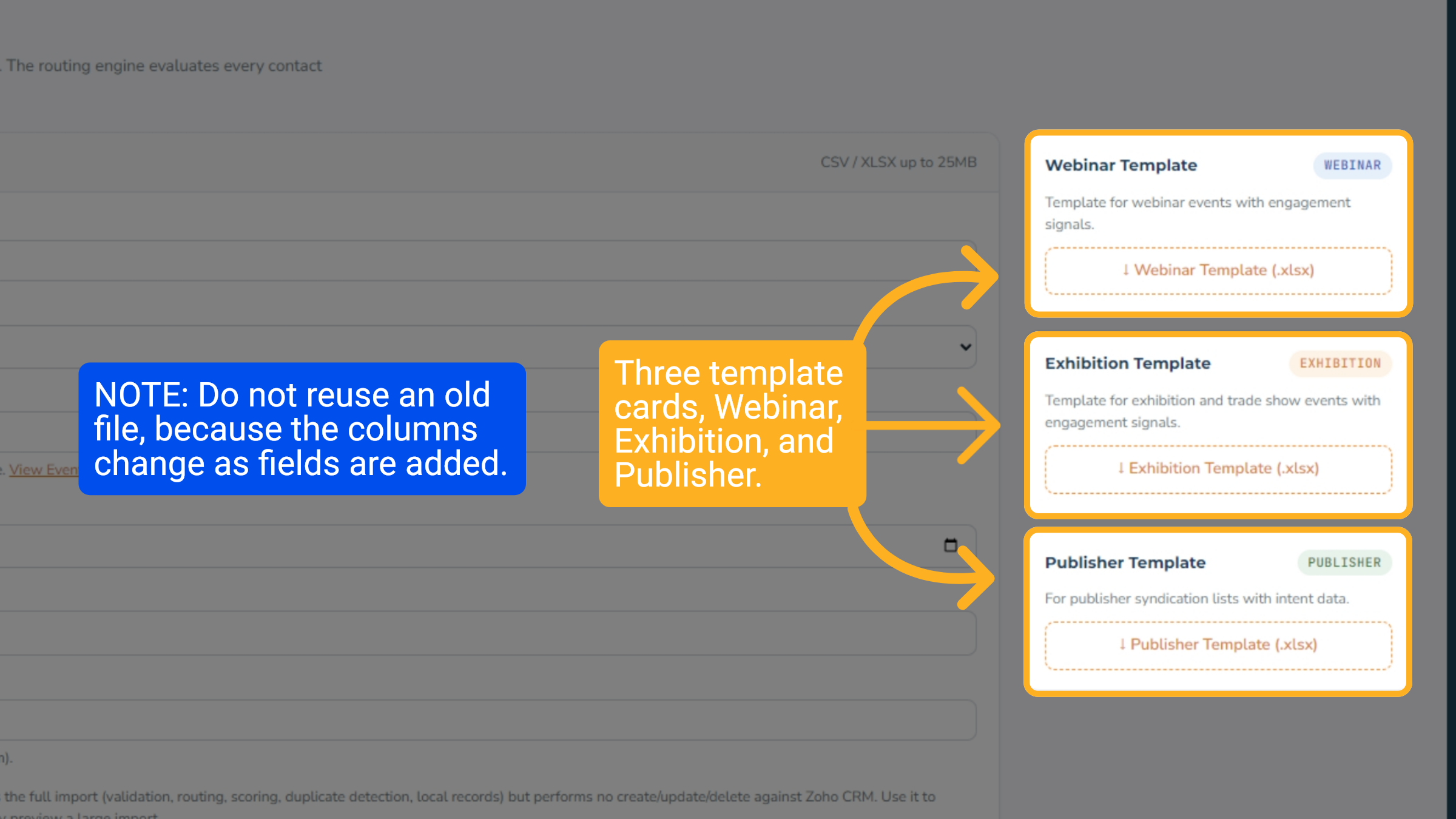
On the right side of the screen you will find three template cards, Webinar, Exhibition, and Publisher. Pick the one that matches your list and click its download button to get the excel file. Always download a fresh template. Do not reuse an old file, because the columns change as fields are added. Paste your list into the template and match your source columns to the template columns.
8 Template
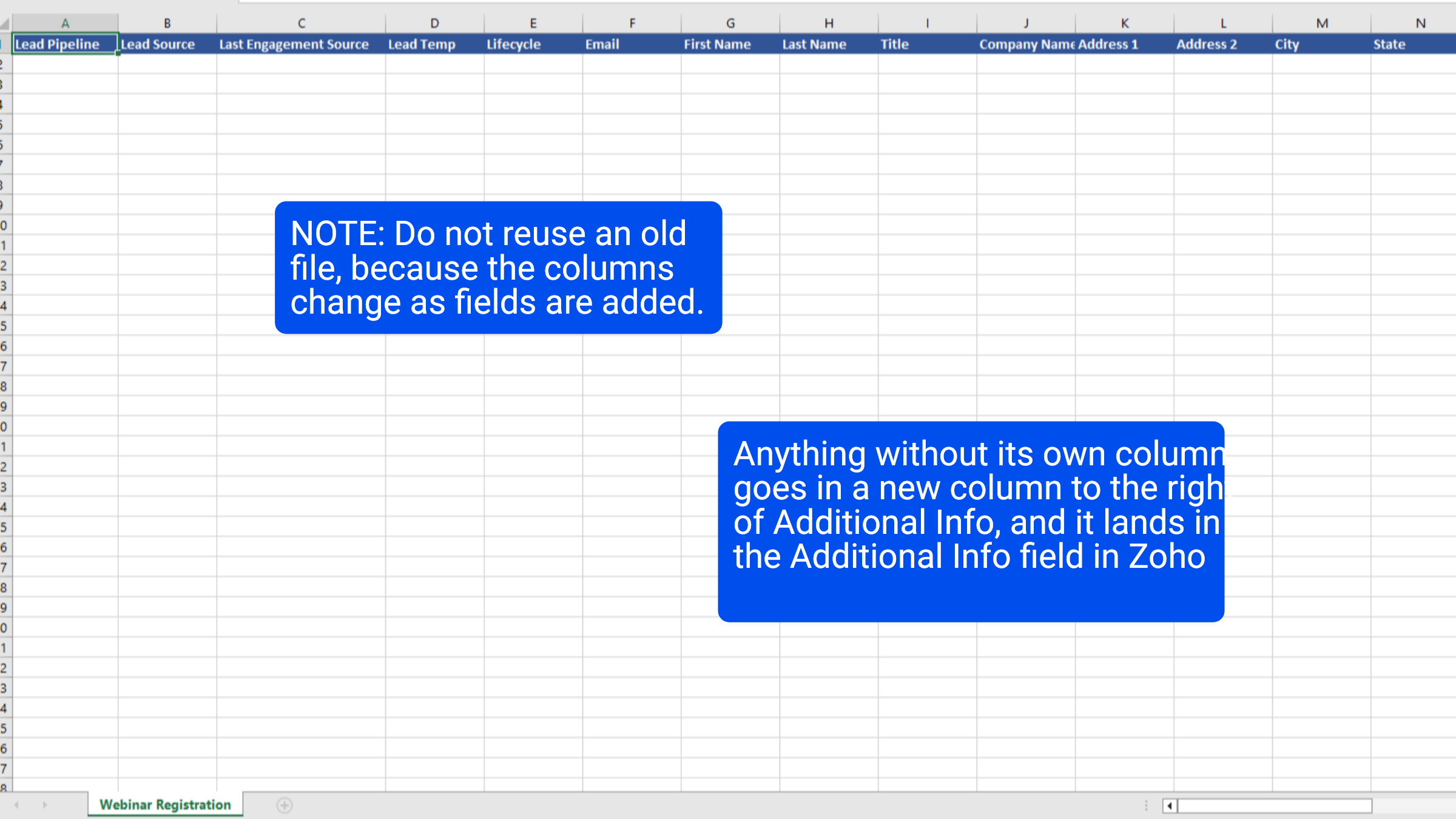
Paste your list into the template you just downloaded. Anything without its own column goes in a new column to the right of Additional Info, and it lands in the Additional Info field in Zoho
9 Executing the Import
To execute the import, each field must be filled out in the sequence we are about to outline.
10 Event Name and Type
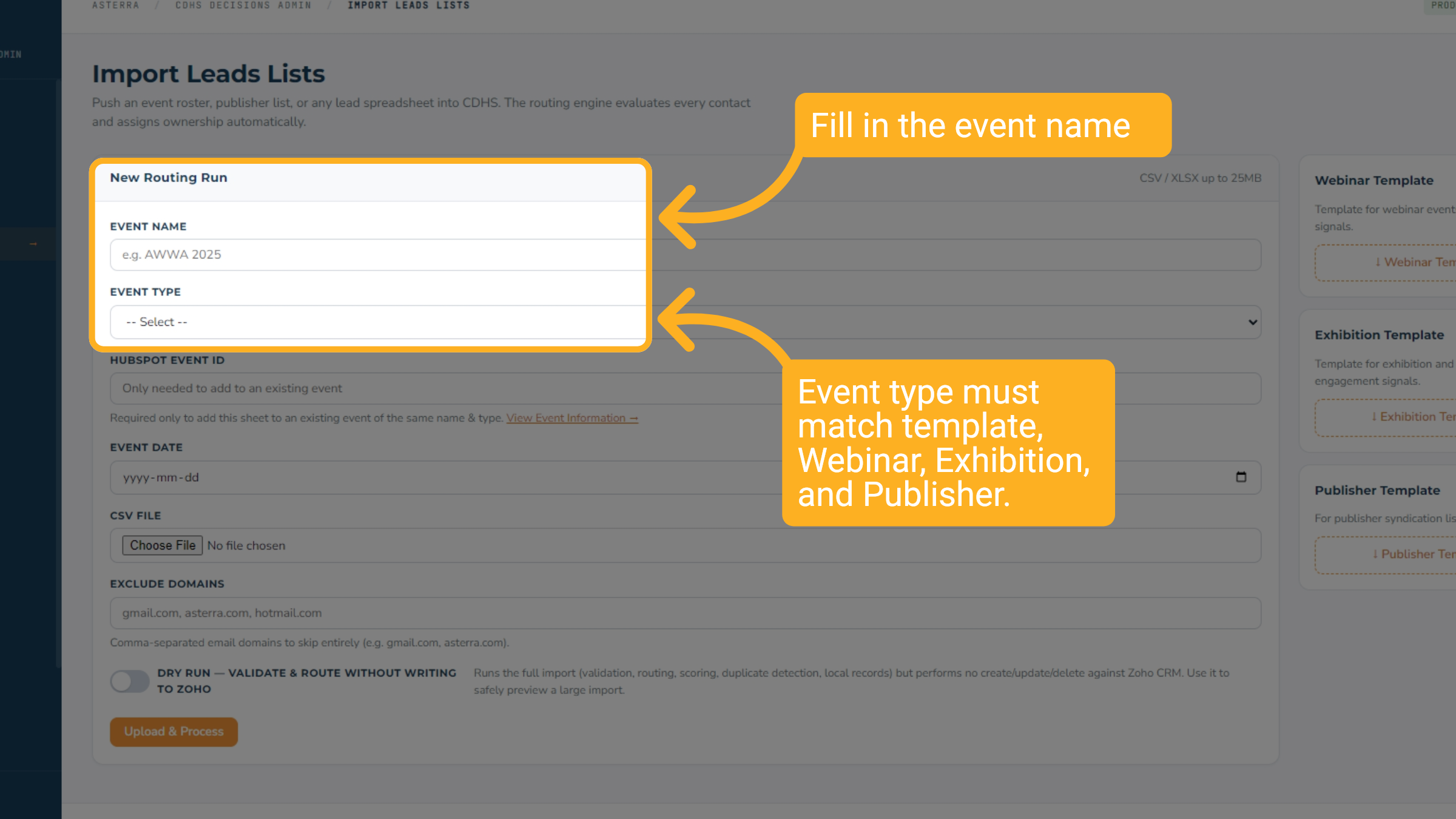
First, type the Event Name. Use the real event name exactly as it will be reported, for example, A W W A 2025. The funnel report groups by this, so consistency matters. Then choose the Event Type from the dropdown.
11 Importing to the Same Event
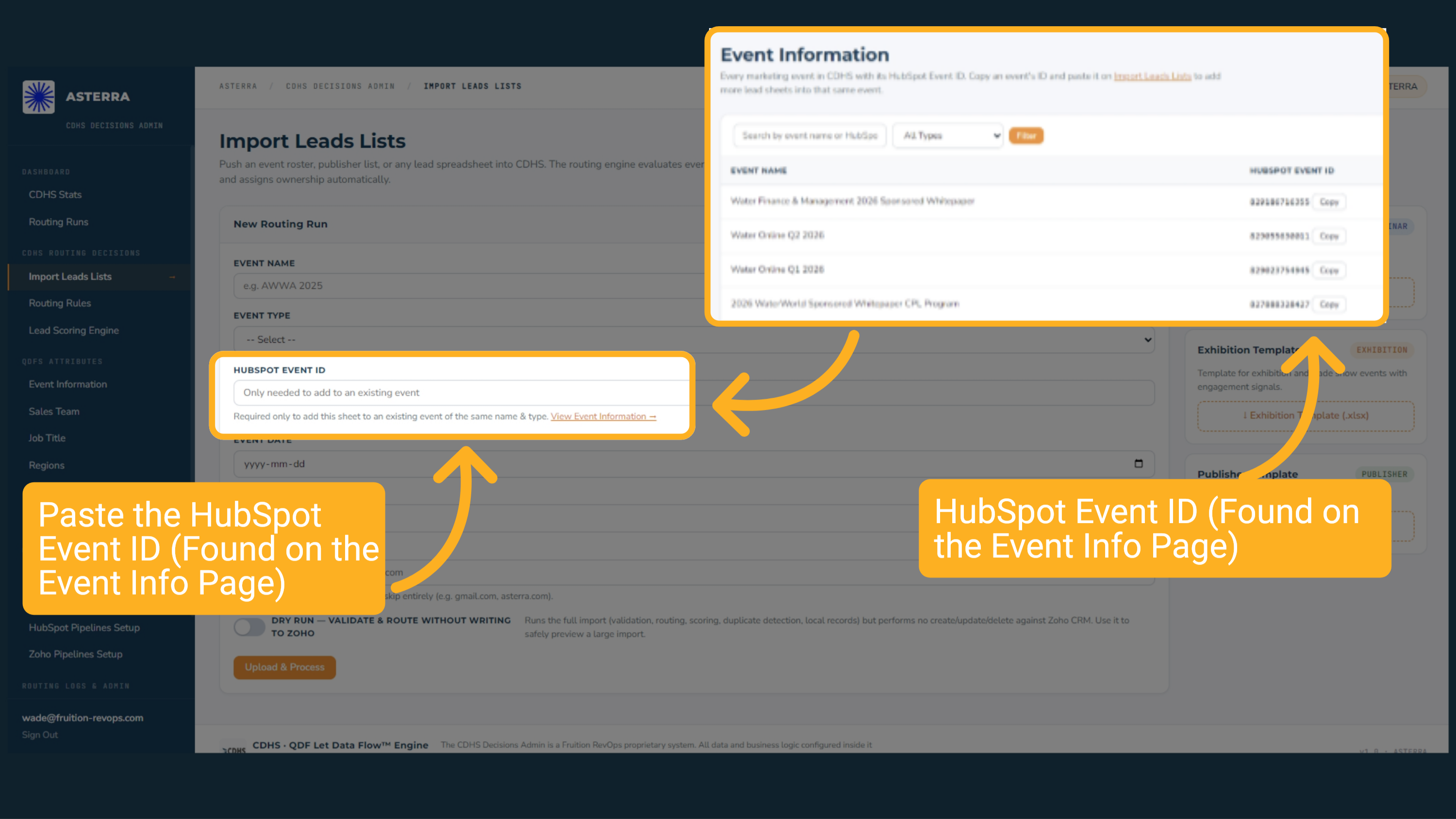
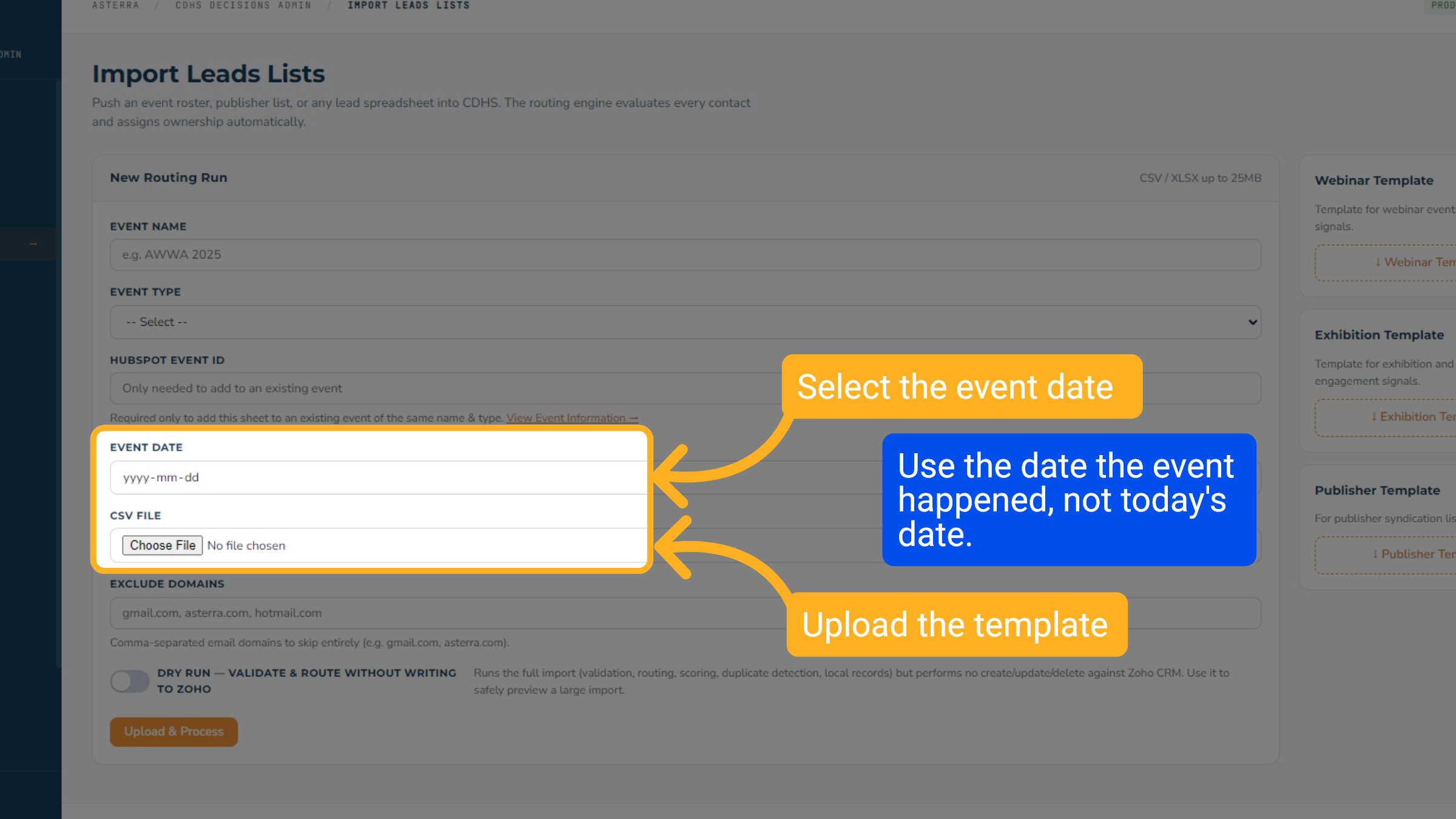
Leave the HubSpot Event ID blank for a new event. Fill it in only when you are adding another sheet to an event that already exists with the same name and type. Getting this wrong creates a duplicate event. This must match the template you filled out: Webinar, Exhibition, or Publisher. Enter the event date, then upload the completed template.
12 Reviewing Event Information
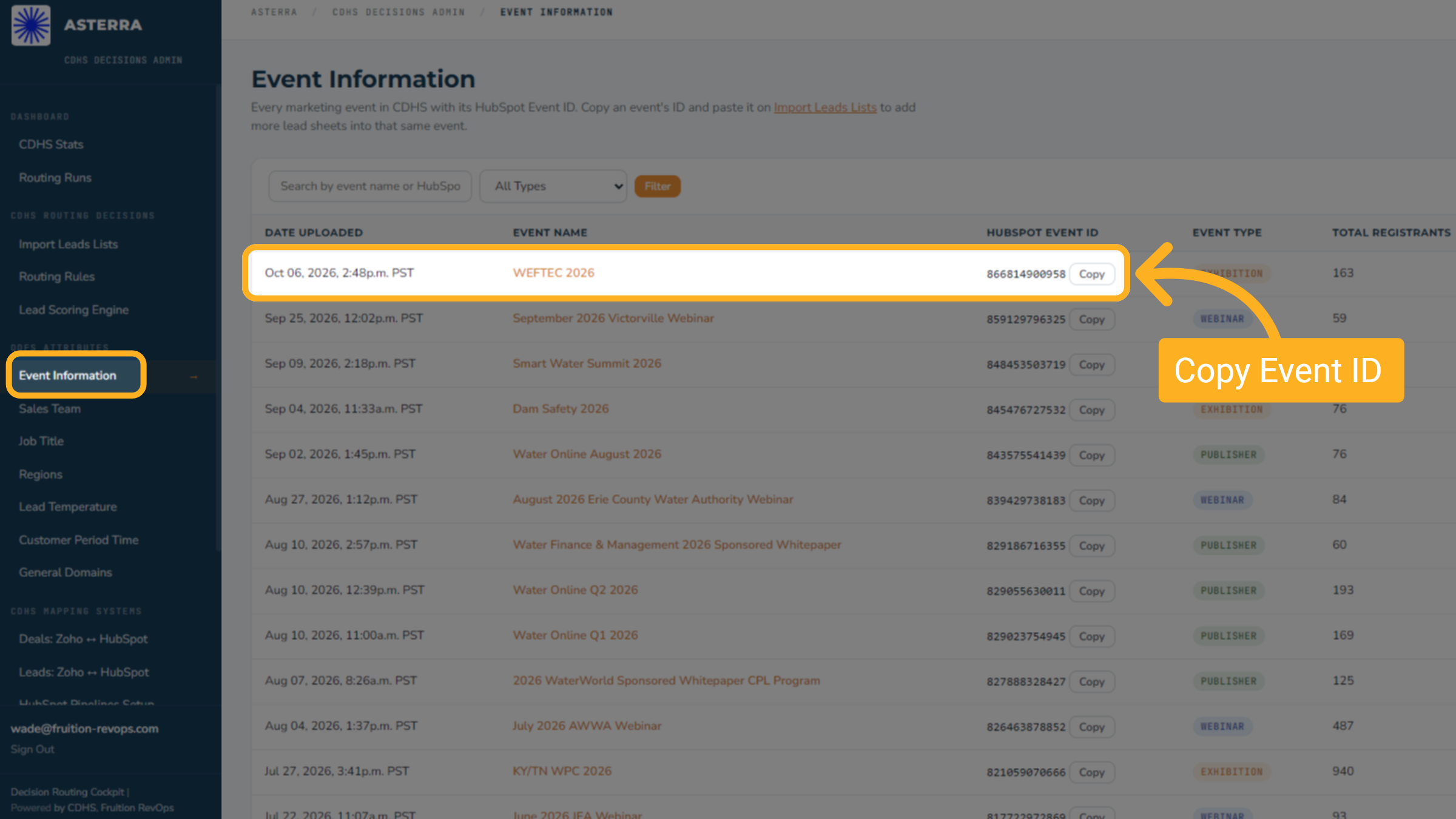
The Event Information section provides a comprehensive list of all marketing events within CDHS, each linked to its unique HubSpot Event ID. This page is essential for managing lead sheets. As mentioned earlier, you can copy an event's ID from an existing Event. This ensures all related leads are grouped correctly.
13 Event Date and Upload Template
Please enter the event date and upload the completed template. Use the date the event happened, not today's date.
14 Excluding Domains from Imports
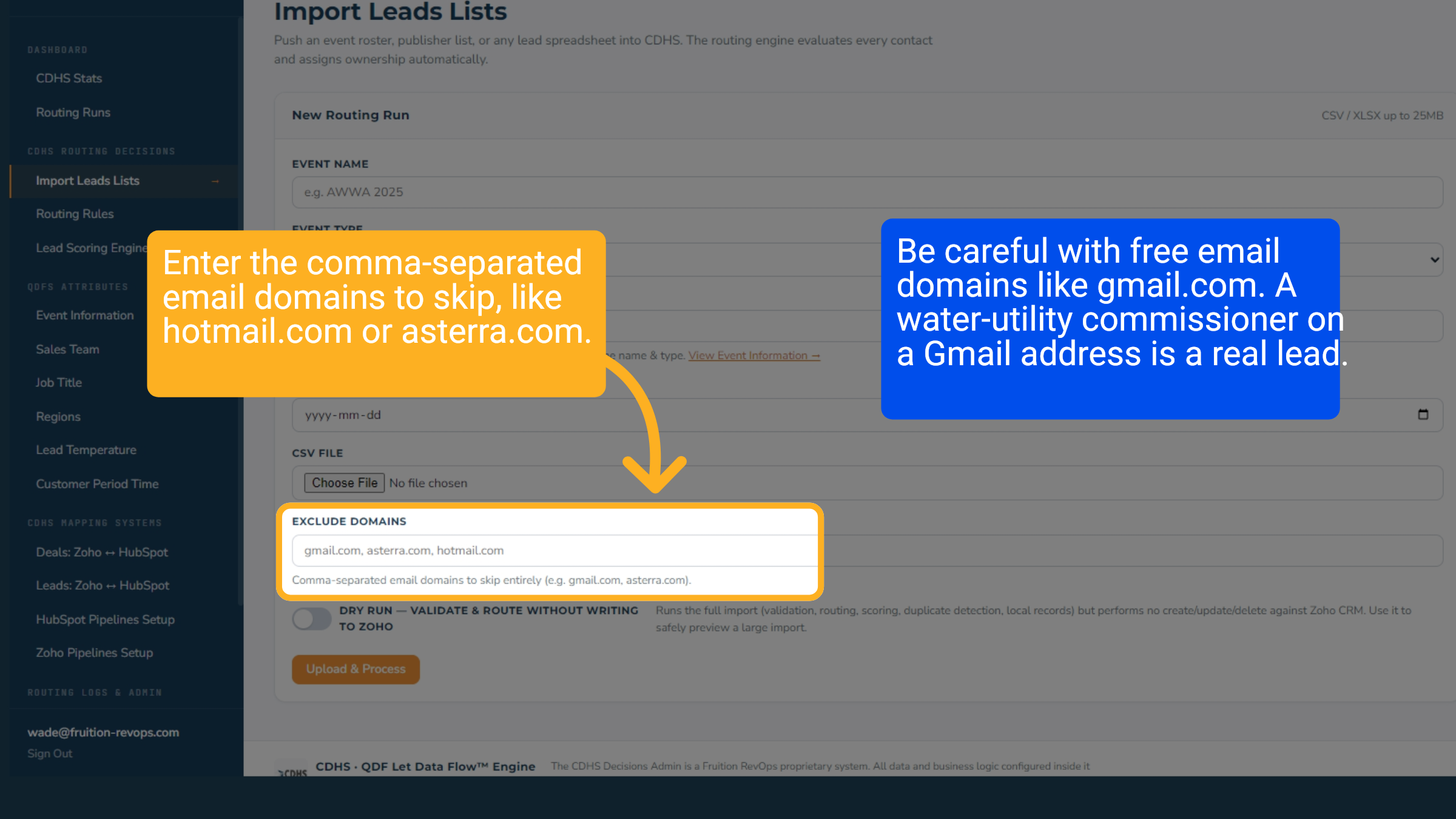
To exclude specific email domains from the import process. The system skips contacts from an excluded domain and creates no record. Be careful with free email domains like gmail.com. A water-utility commissioner with a Gmail address is a real lead. Exclude your own domain and known no-value domains.
15 Dry Run
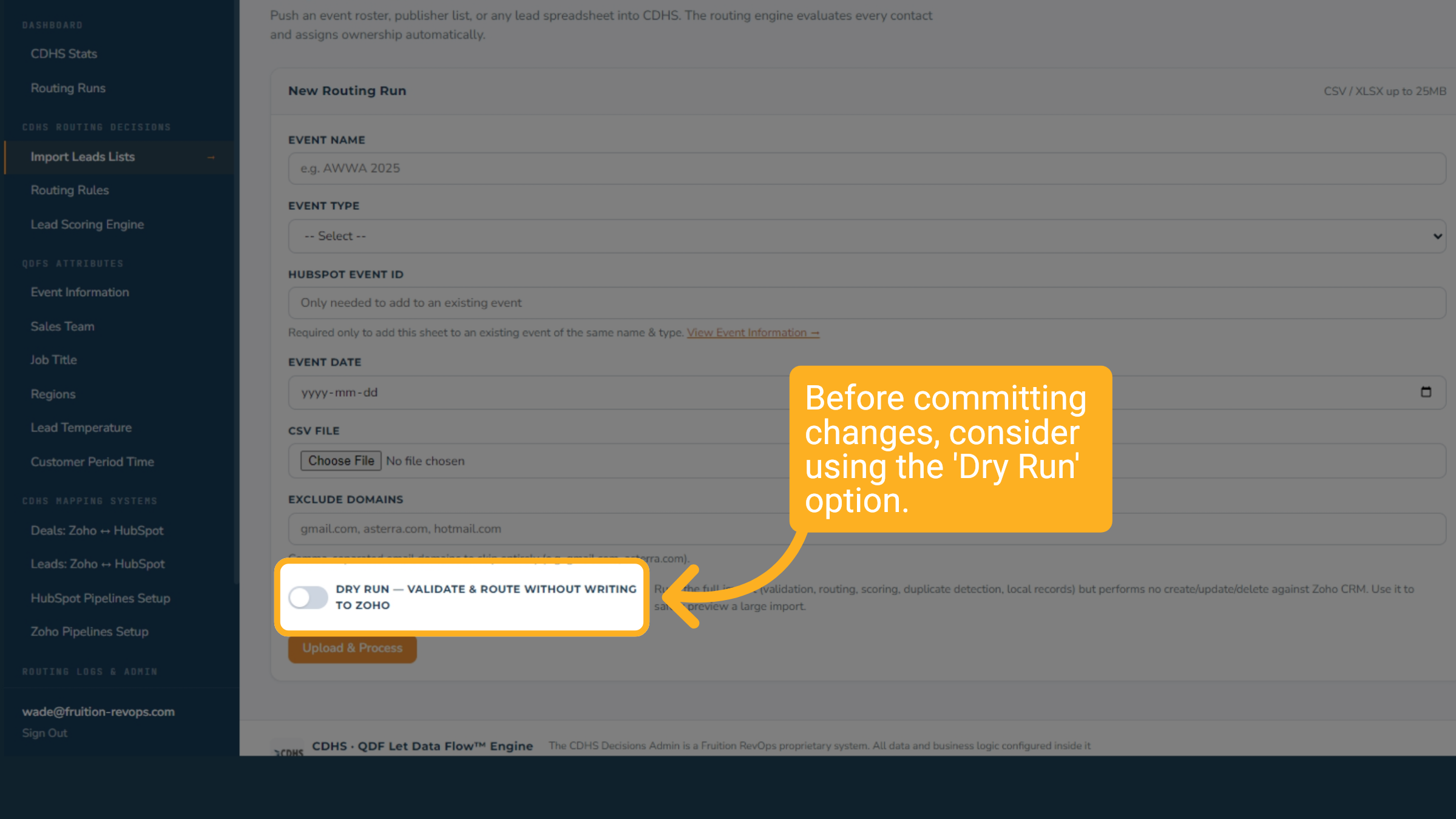
Before committing changes, consider using the 'Dry Run' option. This validates the data and performs routing, scoring, and duplicate detection without updating Zoho CRM.
16 Upload & Process
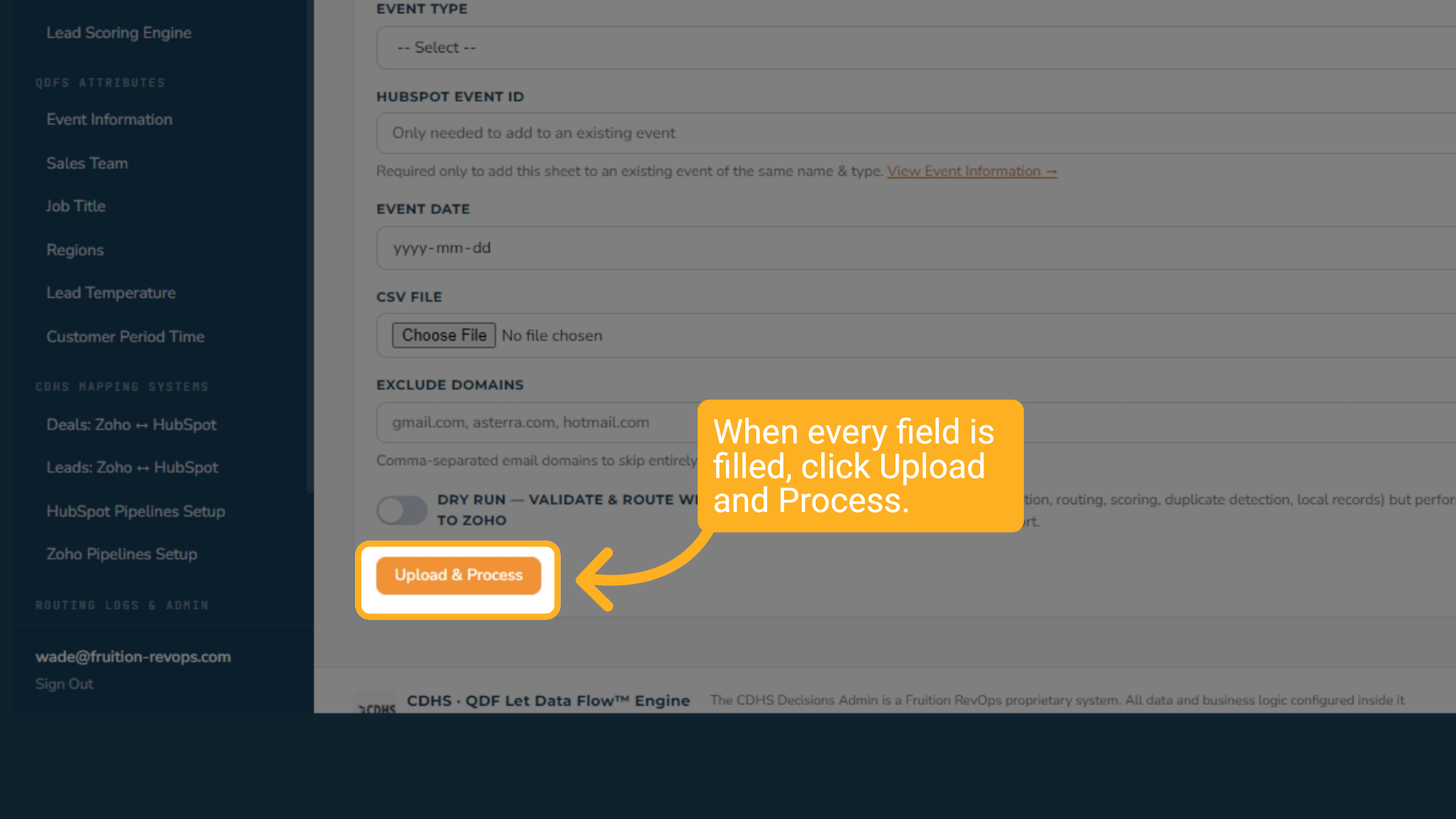
When every field is filled, click Upload and Process. If you used Dry Run, check the result first, then come back and run the same file again with Dry Run switched off.
17 Verifying Import Success
After running an import, how do we confirm its success?
18 Troubleshooting a lead import
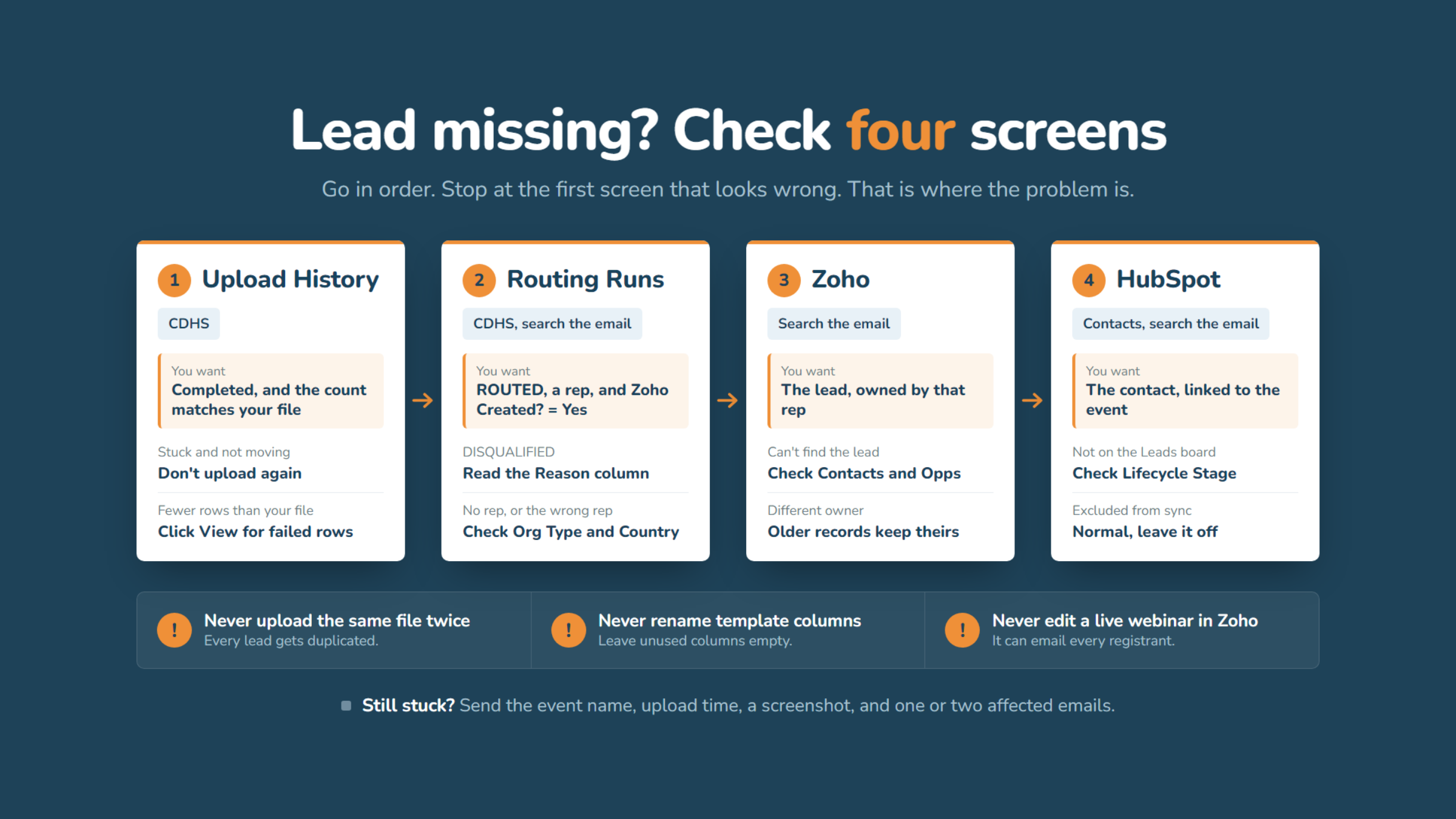
If a lead from an import is missing or in the wrong place, check the four steps in order.
19 1. Upload History (CDHS)
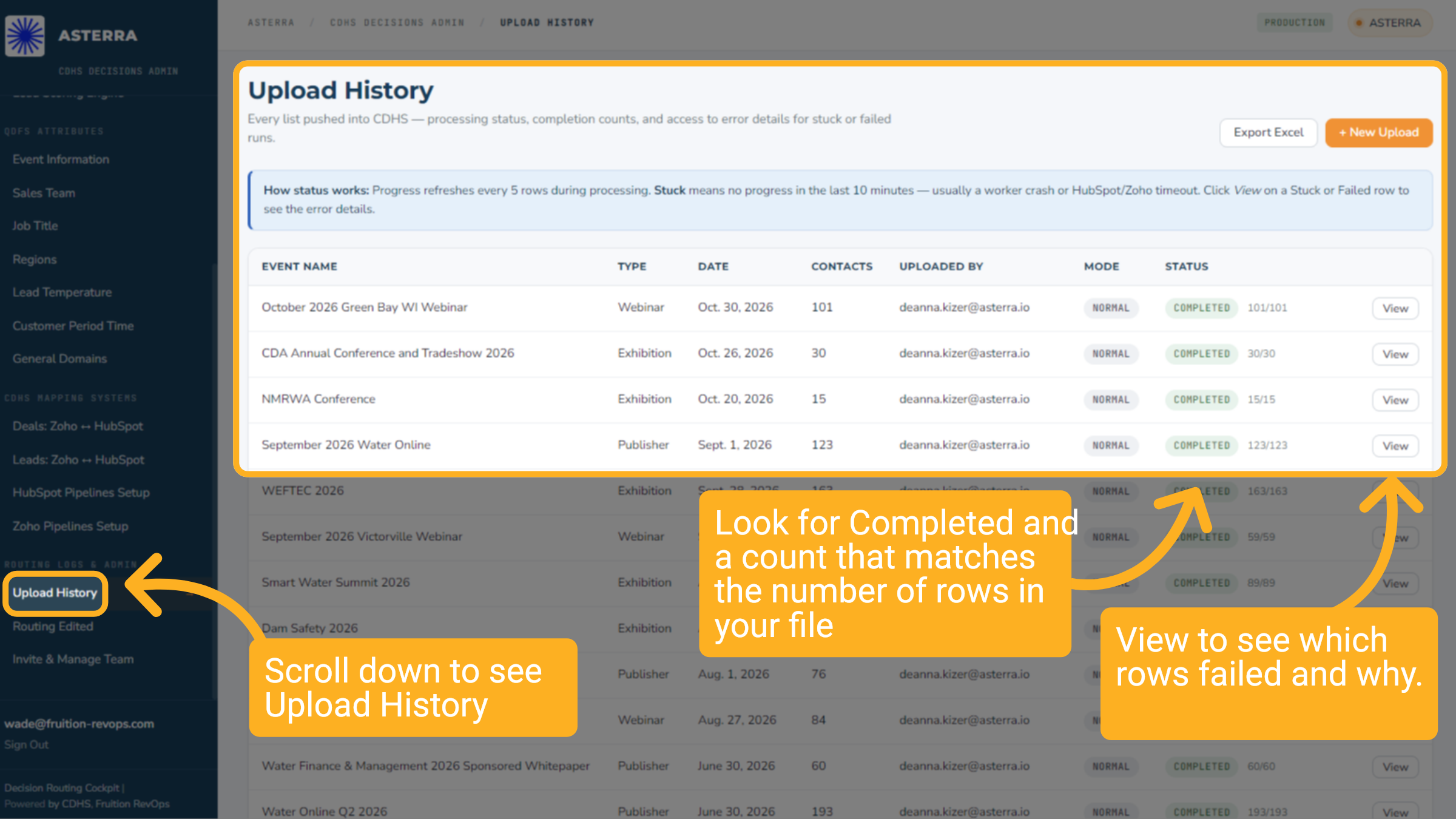
Upload History lists every file sent to the CDHS. It shows each upload's status, how many rows have been processed, and the errors for any upload that stalled or failed.
You want to see Completed, with a count that matches the rows in your file, for example 60/60.
If it shows Stuck, wait a few minutes and refresh. The count goes up every five rows, so a large file can look stalled when it's still moving. If the count hasn't changed after you refresh, the upload has likely crashed or timed out. Don't upload the file again, because every lead will be duplicated. Take a screenshot and ask for help.
If it finished with fewer rows than your file, click View to see which rows failed and why. The usual causes are a missing or misspelled email, or a renamed column.
20 2. Routing Runs (CDHS)
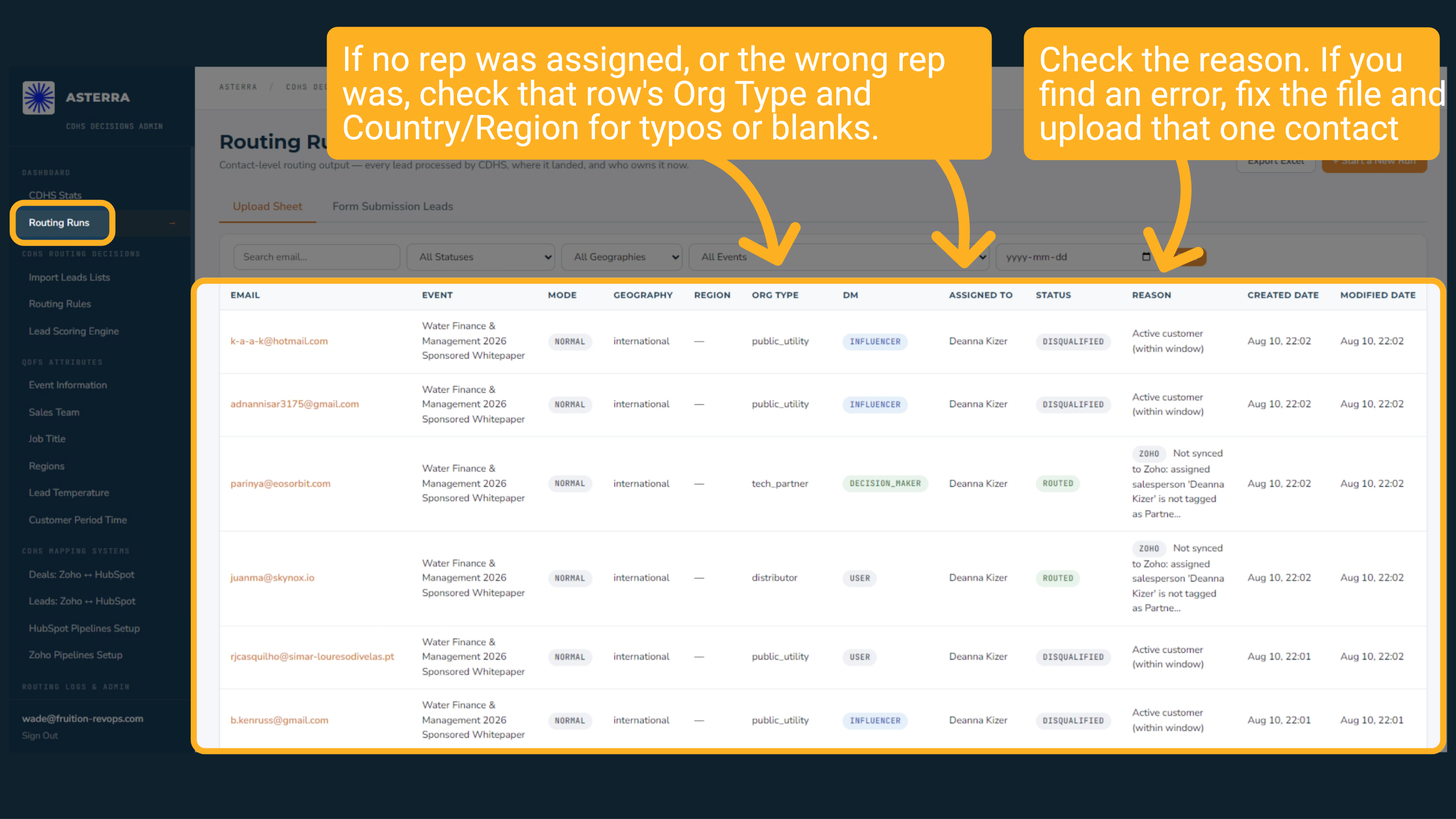
Search for the lead's email. You want to see "ROUTED", a rep's name, and Zoho Created? = Lead Created. A DISQUALIFIED status comes with a reason in the Reason column. Marketing Engaged and Active customer are both normal and need no action. If no rep was assigned, or the wrong rep was, check that row's Org Type and Country for typos or blanks. Fix the file and upload that one contact again. Zoho Created? always starts at No, so give it a few minutes and refresh. To check a whole upload at once, filter Routing Runs by Zoho Created? = No.
21 3. Zoho
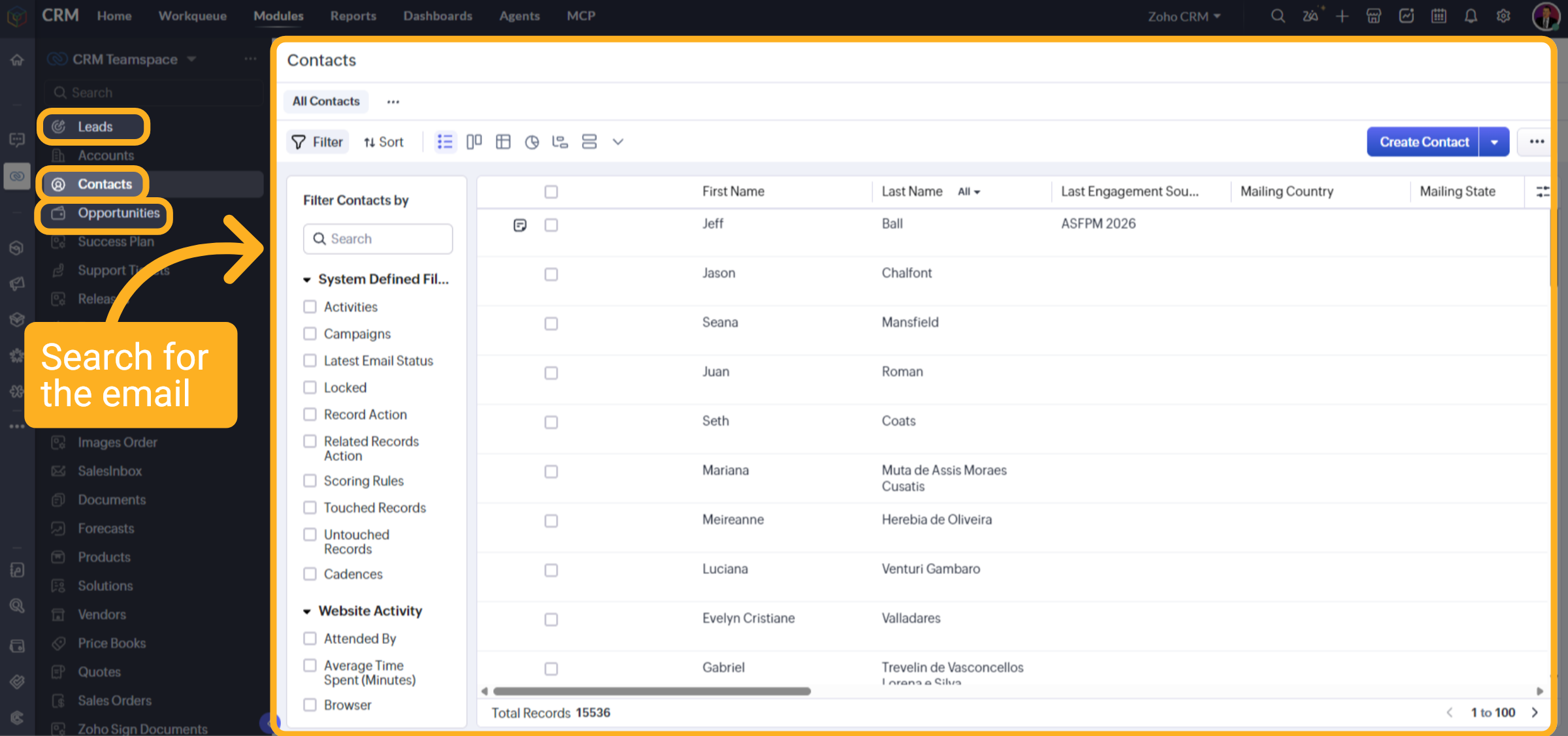
Search for the email in Leads, Contacts, and Opportunities. If the person was already a contact, or was added to an open opportunity, the import worked as it should. If the owner doesn't match what the CDHS shows, check the record's Created Time. Records that existed before your upload keep their original owner. A brand-new record with the wrong owner needs a help request. A lead flagged Missing Company Name still went through, so just add the company name in Zoho.
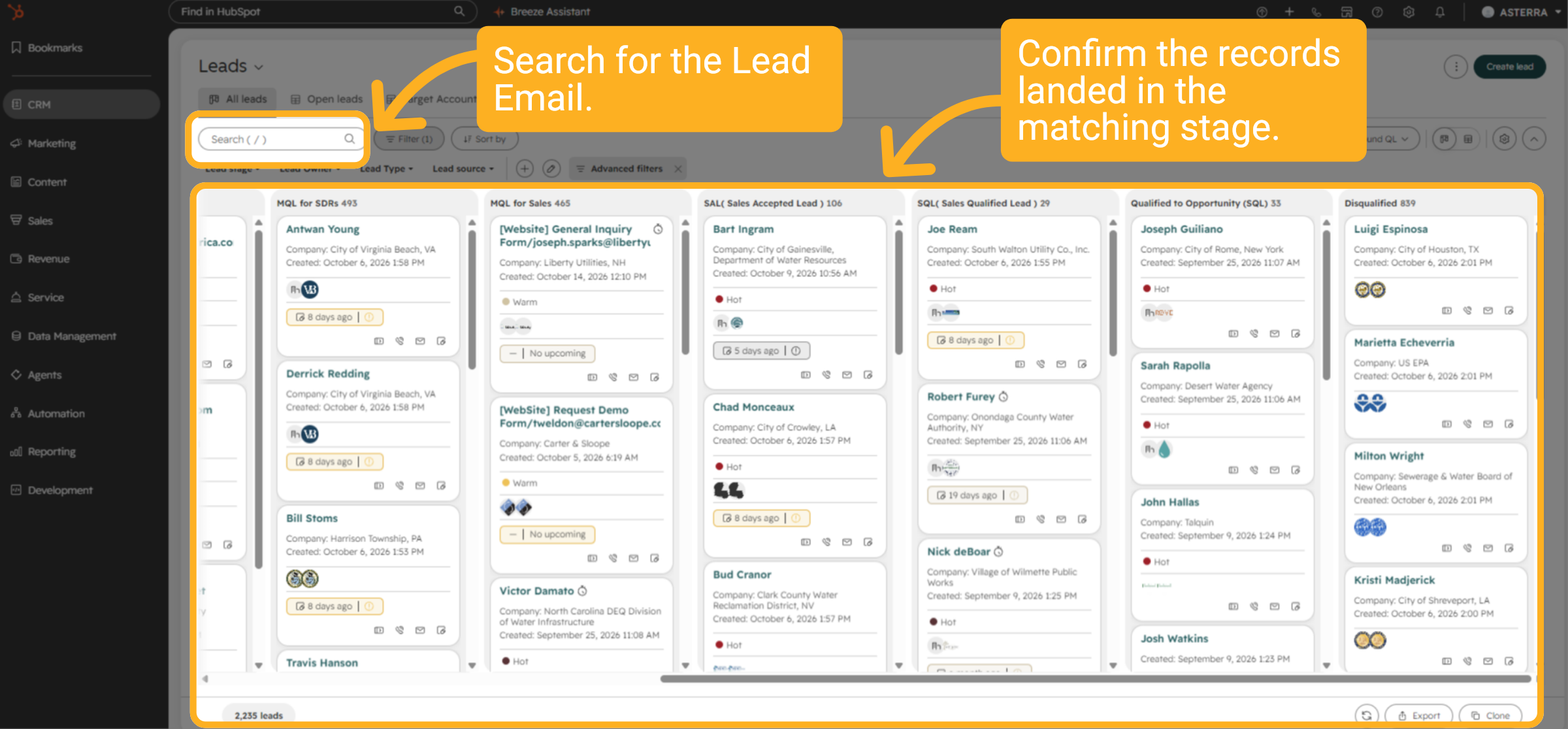
22 4. HubSpot
Search HubSpot Leads for the Contacts email. You want the contact linked to the event. If it's missing from the Leads board, check its Lifecycle Stage. Contacts set to Marketing Engaged stay in HubSpot on purpose. Being excluded from sync is also normal, because the CDHS now sends leads to Zoho. Still stuck? Send the event name, the upload time, a screenshot of what you saw, and 1 or 2 affected email addresses.
This SOP covered the main lead sources and detailed the import process for exhibition, webinar, and publisher content leads. We explored the CDHS Decisions Admin portal, including the import interface, template usage, and the dry-run option, and concluded with how to monitor import success and lead-routing outcomes through the Upload History and Routing Runs pages.