Webforms Importing Process
Welcome to ASTERRA's Website Form Submissions standard operating procedure. This covers what happens when someone fills out the form on the ASTERRA website, where that record lands, and how you move it through the CDHS to the right owner. By the end you will be able to take a form lead from arrival to a confirmed owner on your own.
1 Website forms skip the import
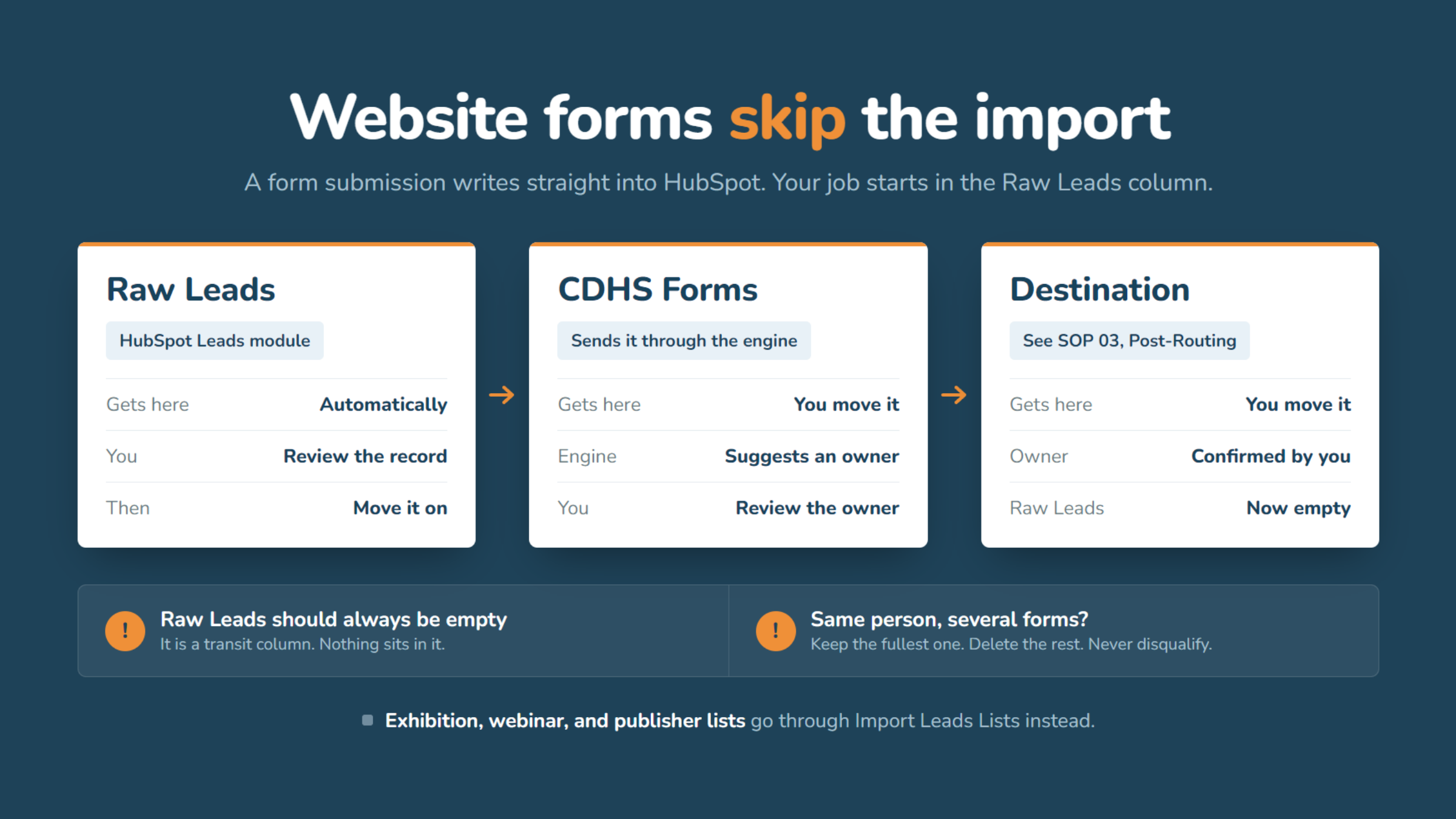
Exhibition, webinar, and publisher lists are imported through the CDHS. The website form is different. Nothing is downloaded, filled, or uploaded. A form submission writes straight into HubSpot. From there, you move it through three columns. Raw Leads, then CDHS Forms, then its destination column.
2 Website Forms Bypass Import Process
Remember, website forms operate differently, completely bypassing this manual import process.
3 The Website Forms
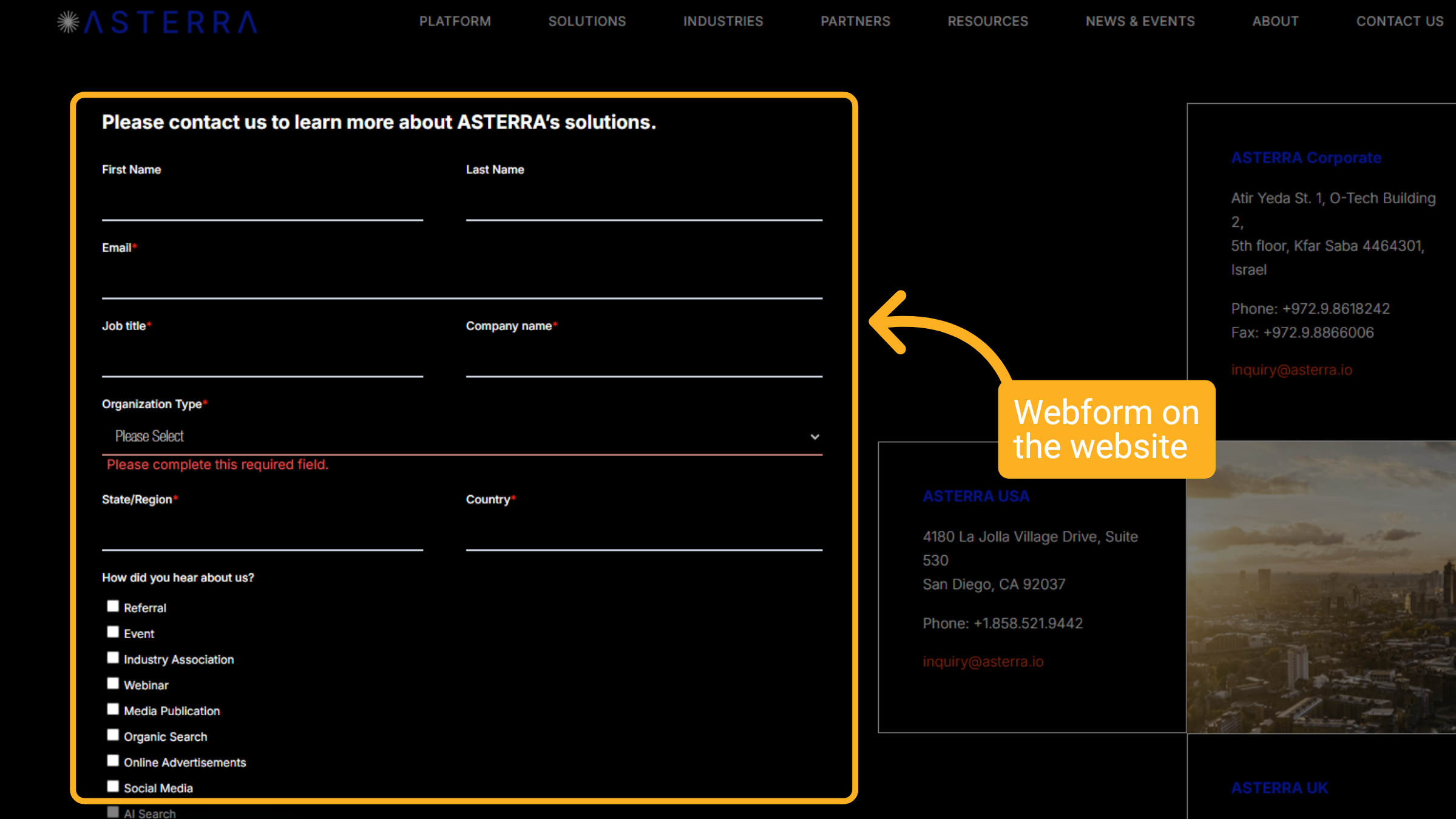
Website leads begin here, on the web forms at Asterra.io. When a user submits the form, the details are automatically sent to HubSpot and added to Raw Leads. No manual imports are needed.
4 Open HubSpot
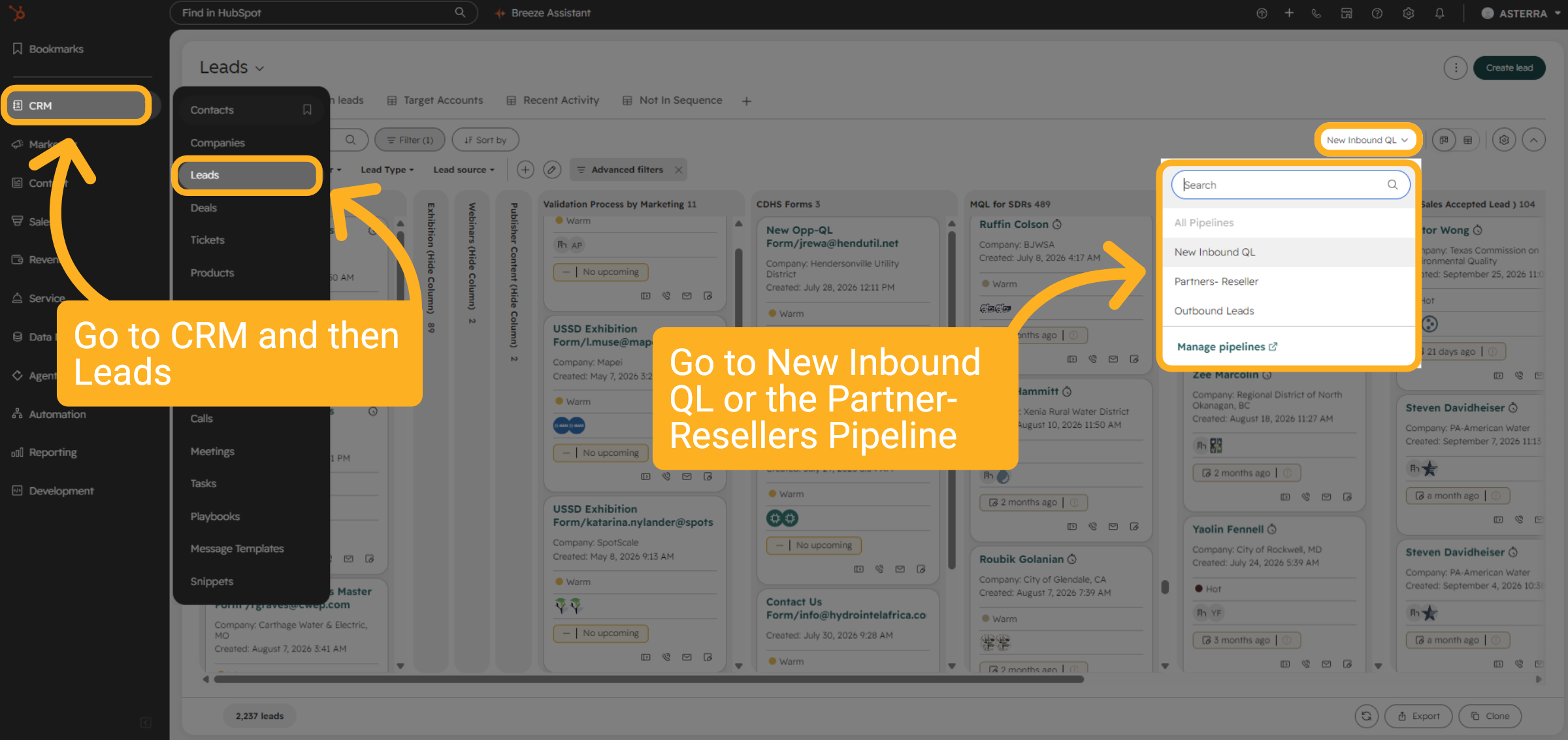
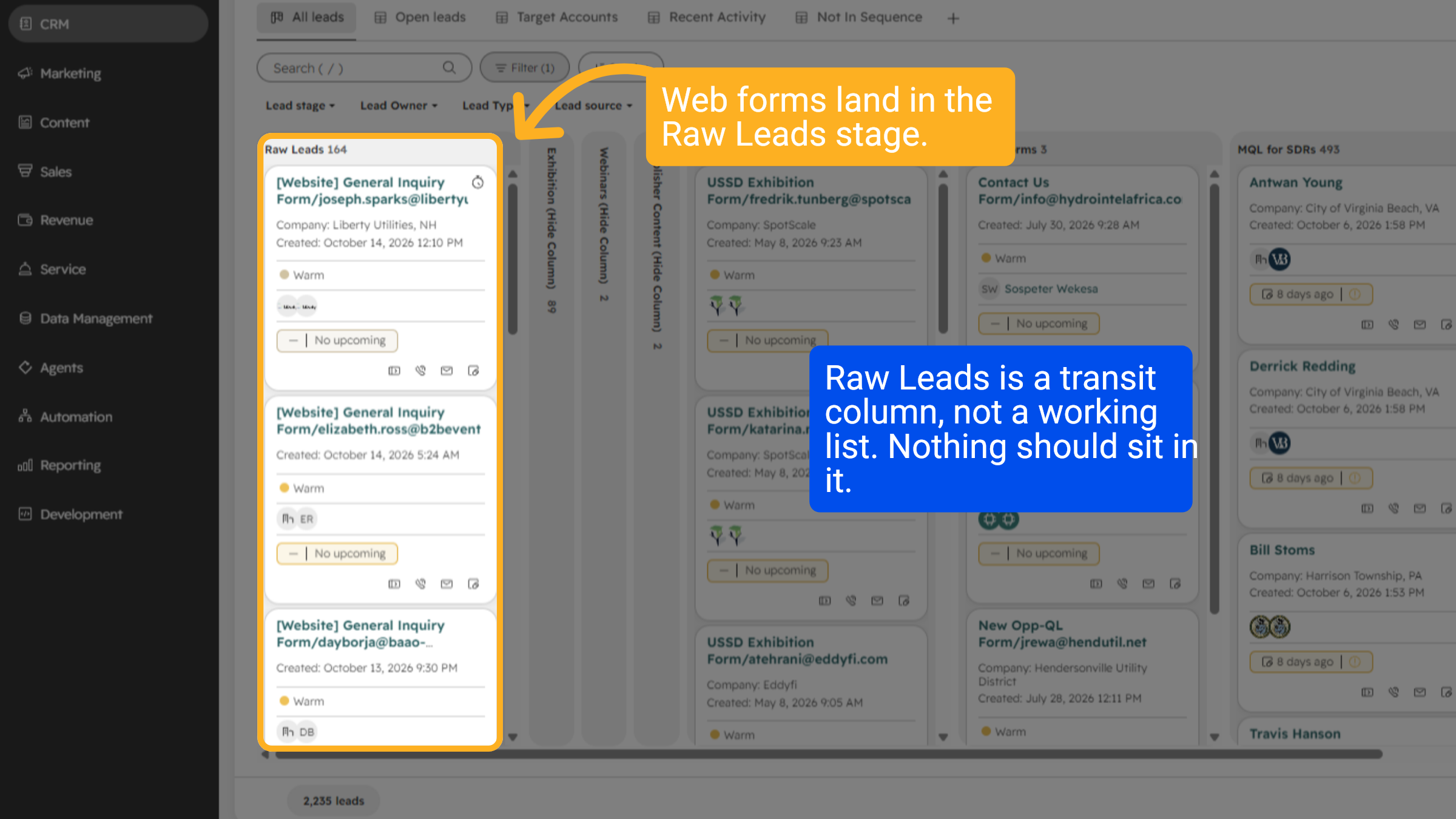
Then open HubSpot and go to confirm the records landed in the Raw Leads column, in either New Inbound QL or the Partner-Resellers Pipeline, depending on lead type.
5 Review the record in Raw Leads
Then open HubSpot and confirm the records landed in the Raw Leads column. Raw Leads is a transit column, not a working list. Nothing should sit in Raw Leads. A form submission writes straight into HubSpot. Open the record. Check that the information is updated and complete, and that it looks like a real inquiry.
6 Duplicate form submissions
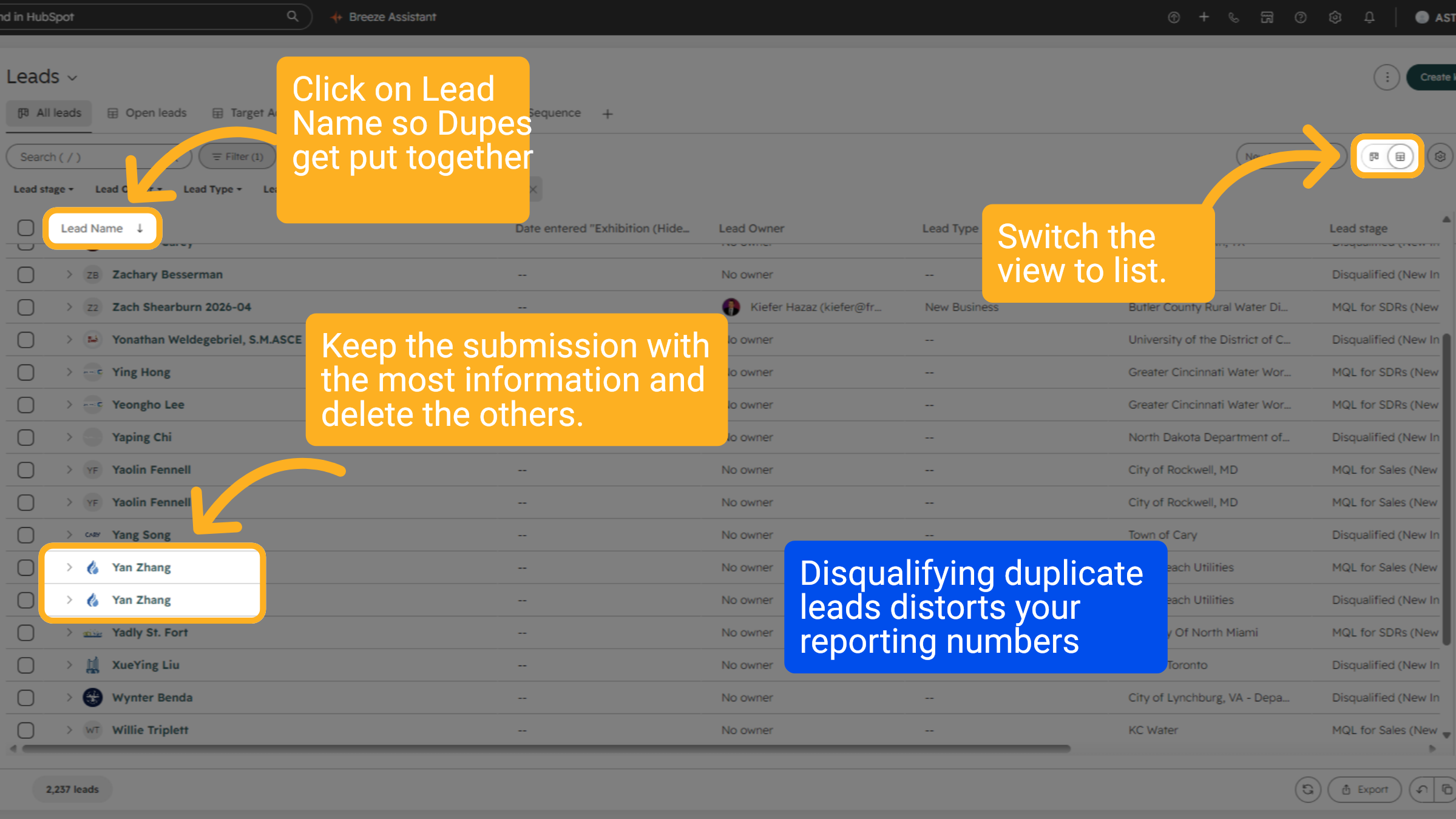
If the same person submitted multiple forms, retain the submission containing the most information and remove the others. Do not disqualify them, as disqualifying skews your reporting numbers. Switch the view to list. Click on Lead Name to group duplicates together.
7 Checking Webforms
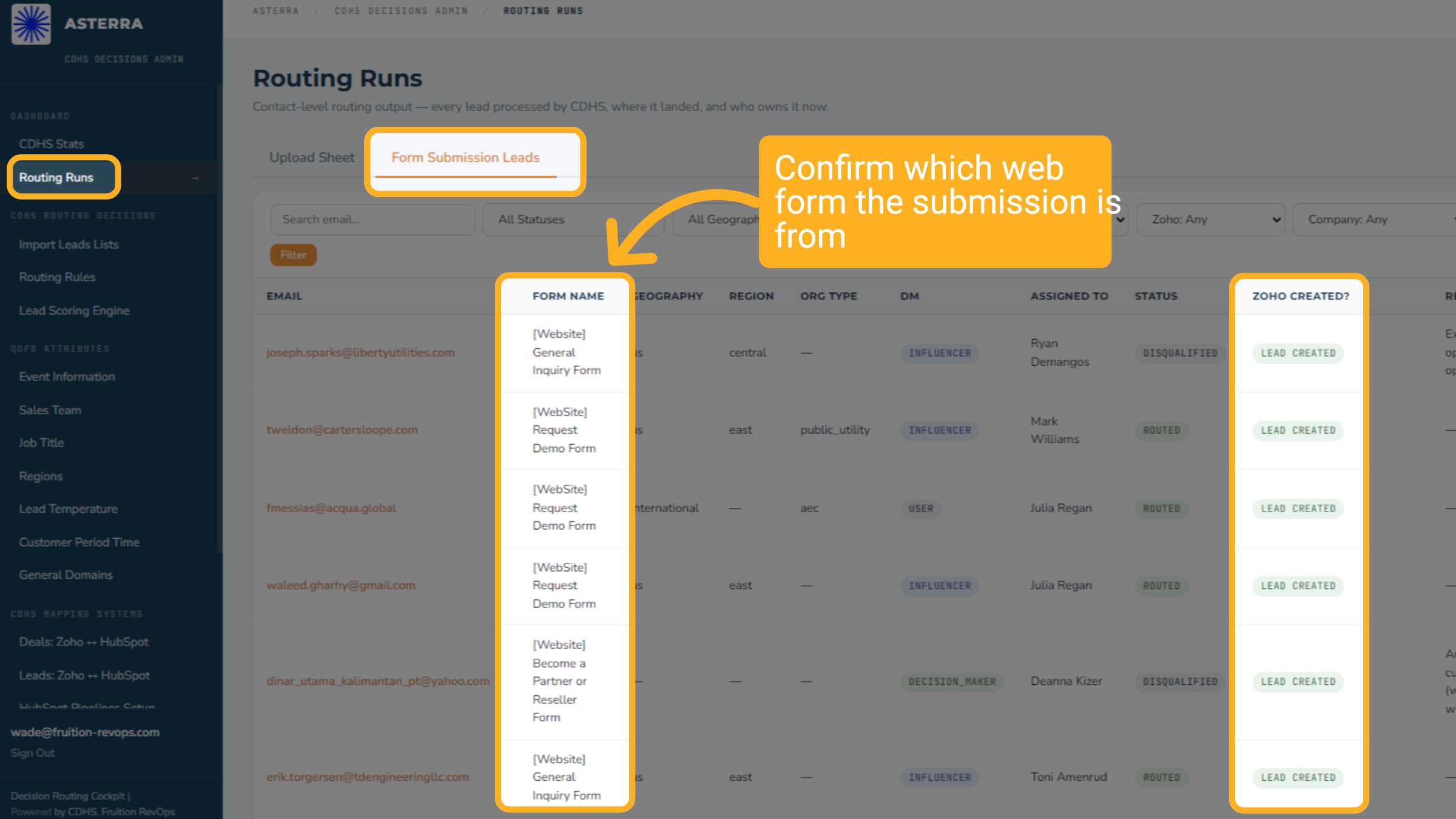
To check a form lead, open Routing Runs and click the Form Submission Leads tab. The Form Name column shows which website form each lead came from, such as General Inquiry, Request Demo, or Become a Partner or Reseller. Each row also shows who the lead was assigned to, its routing status, and whether Zoho created a lead.
8 Troubleshooting Forms
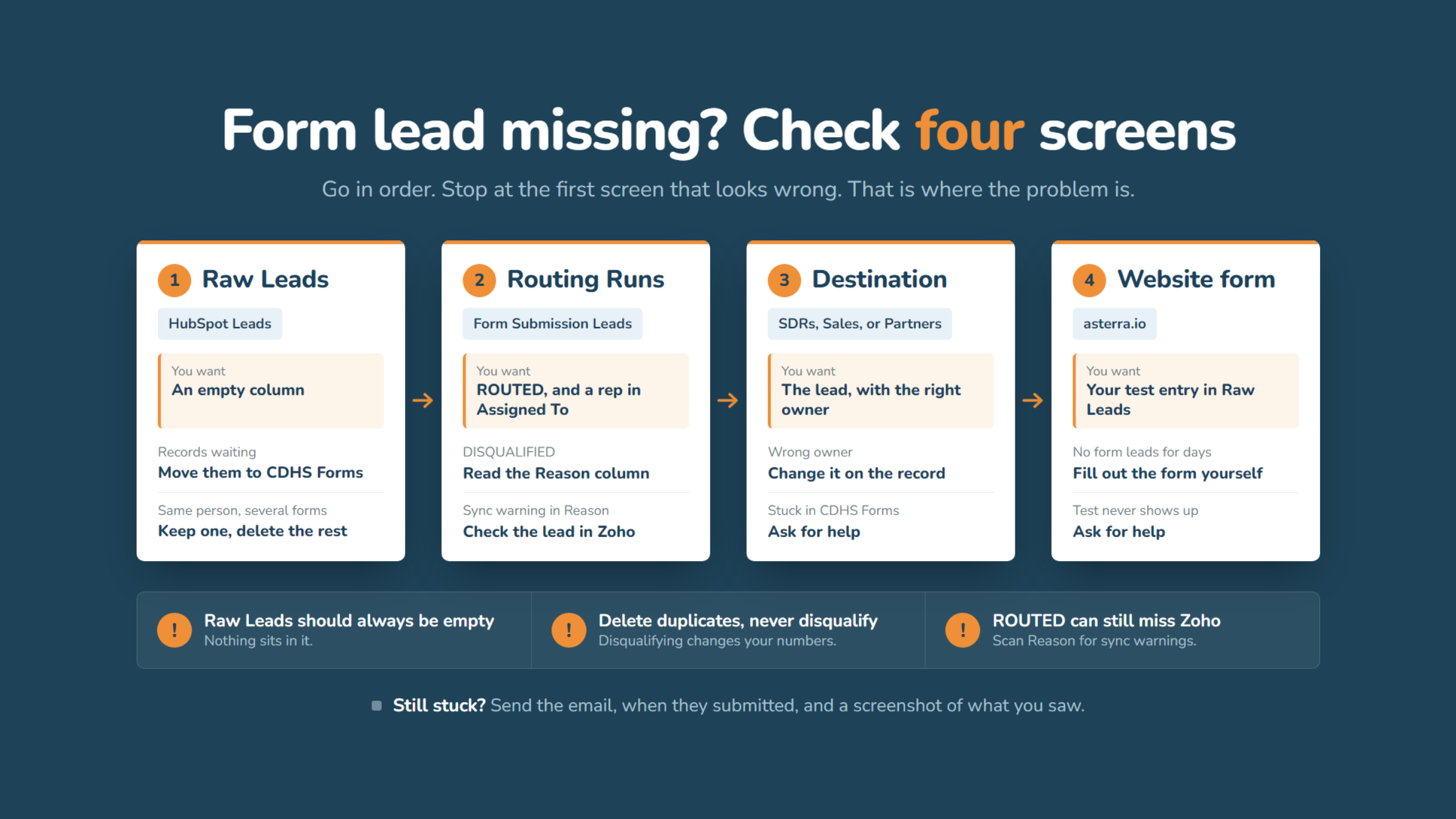
Form lead missing? Check these four screens in order. Stop at the first one that looks wrong.
1. Raw Leads. This column should be empty. Move any waiting records to CDHS Forms. If the same person sent several forms, keep the fullest one and delete the rest. Never disqualify them.
2. Routing Runs. Open the Form Submission Leads tab and search the email. You want ROUTED and a rep in Assigned To. DISQUALIFIED? Read the Reason. A sync warning means you should check the lead in Zoho.
3. Destination. The lead should be in its column with the right owner. Change the owner on the record if needed.
4. Website form. No form leads for days? Fill out the form on asterra.io yourself. If your test never reaches Raw Leads, ask for help.
Still stuck? Send the email, when they submitted, and a screenshot of what you saw.
This presentation covered the four main lead sources, detailing the import process for exhibition, webinar, and publisher content leads, while noting the automatic handling of website form submissions. We explored the CDHS Decisions Admin portal, including the import interface, template usage, and the dry run option, concluding with how to monitor import success and lead routing outcomes through the Upload History and Routing Runs pages.