
The Routing Engine
Welcome to ASTERRA's Routing Engine Standard Operating Procedure. This covers how the CDHS decides who owns each lead, how to read and add routing rules, and how to keep the lists behind them up to date. By the end, you will be able to maintain the routing rules on your own.
1 What the engine does
Every lead that enters the CDHS is checked first. Is the company already a customer? Is there an open opportunity in Zoho? Is there already a recent lead for this person? If so, no new lead is created, and the reason shows on Routing Runs. Leads that clear that check go to the routing rules, which decide who owns them.
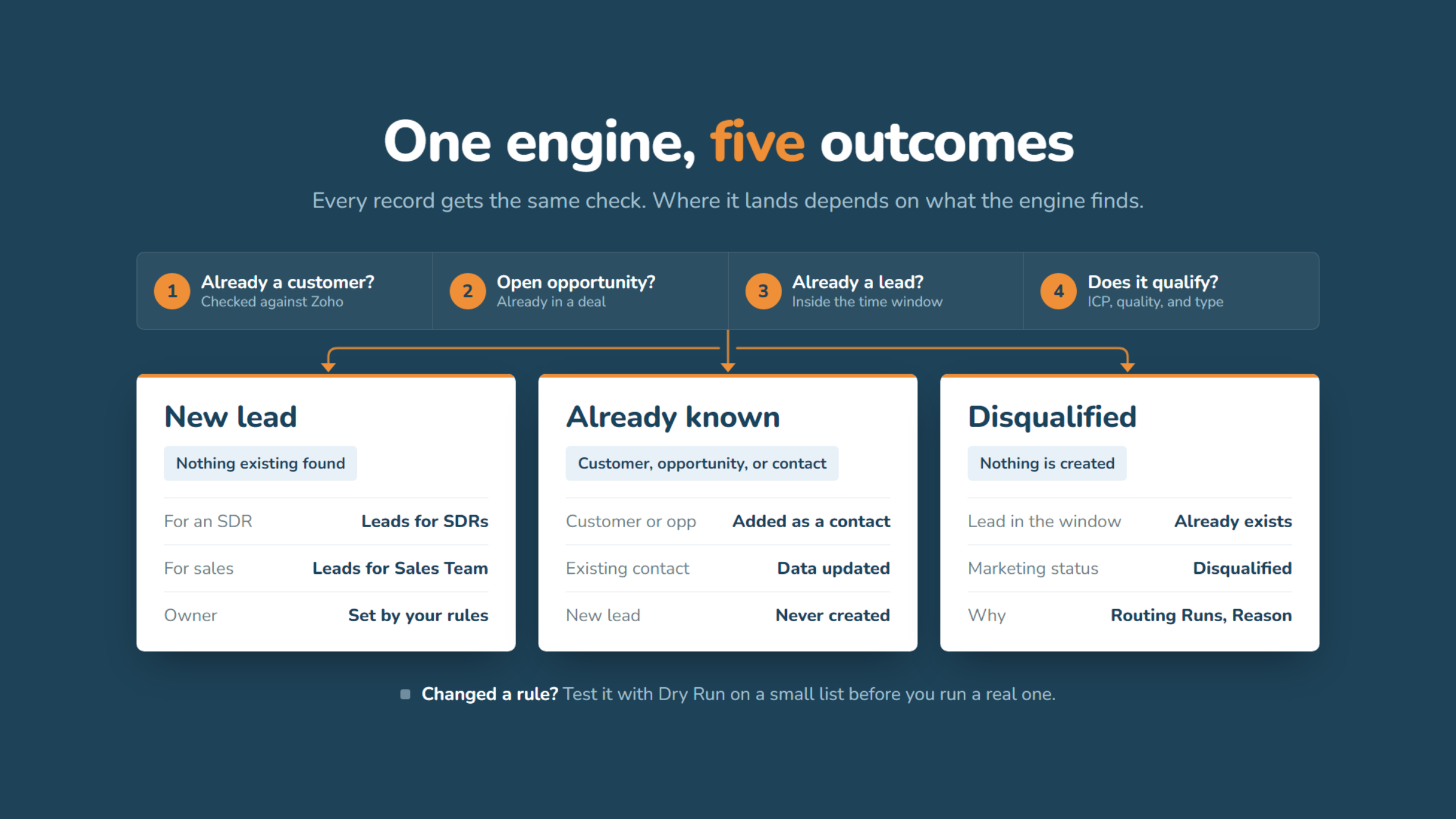
2 How the Routing Engine Works
Okay, let's get started on how the routing engine works.
3 Open Routing Rules
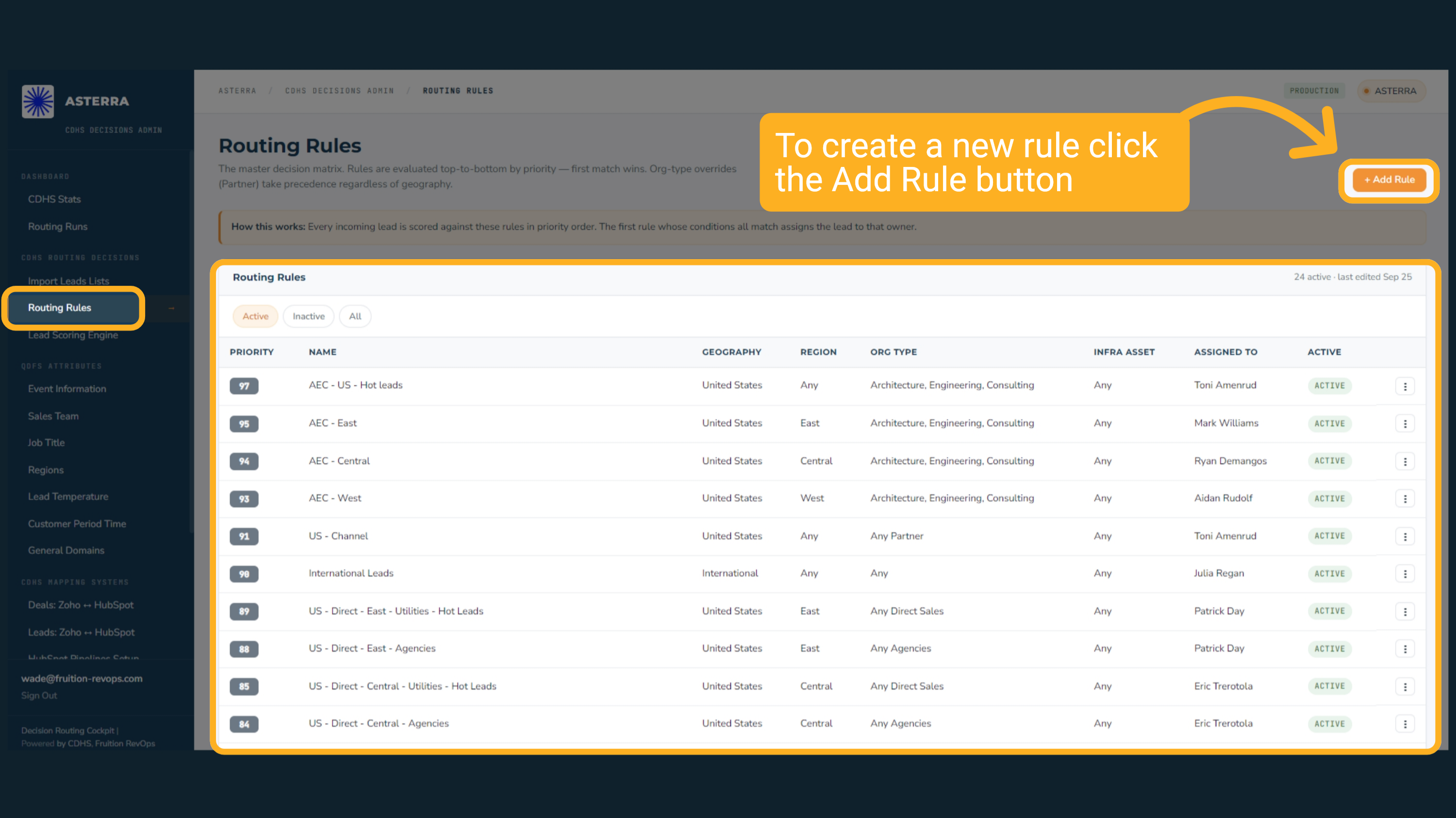
In the left sidebar, under CDHS Routing Decisions, click Routing Rules. This is the master decision matrix for every lead the CDHS routes. To create a new rule click the Add Rule button
4 Creating a Rule
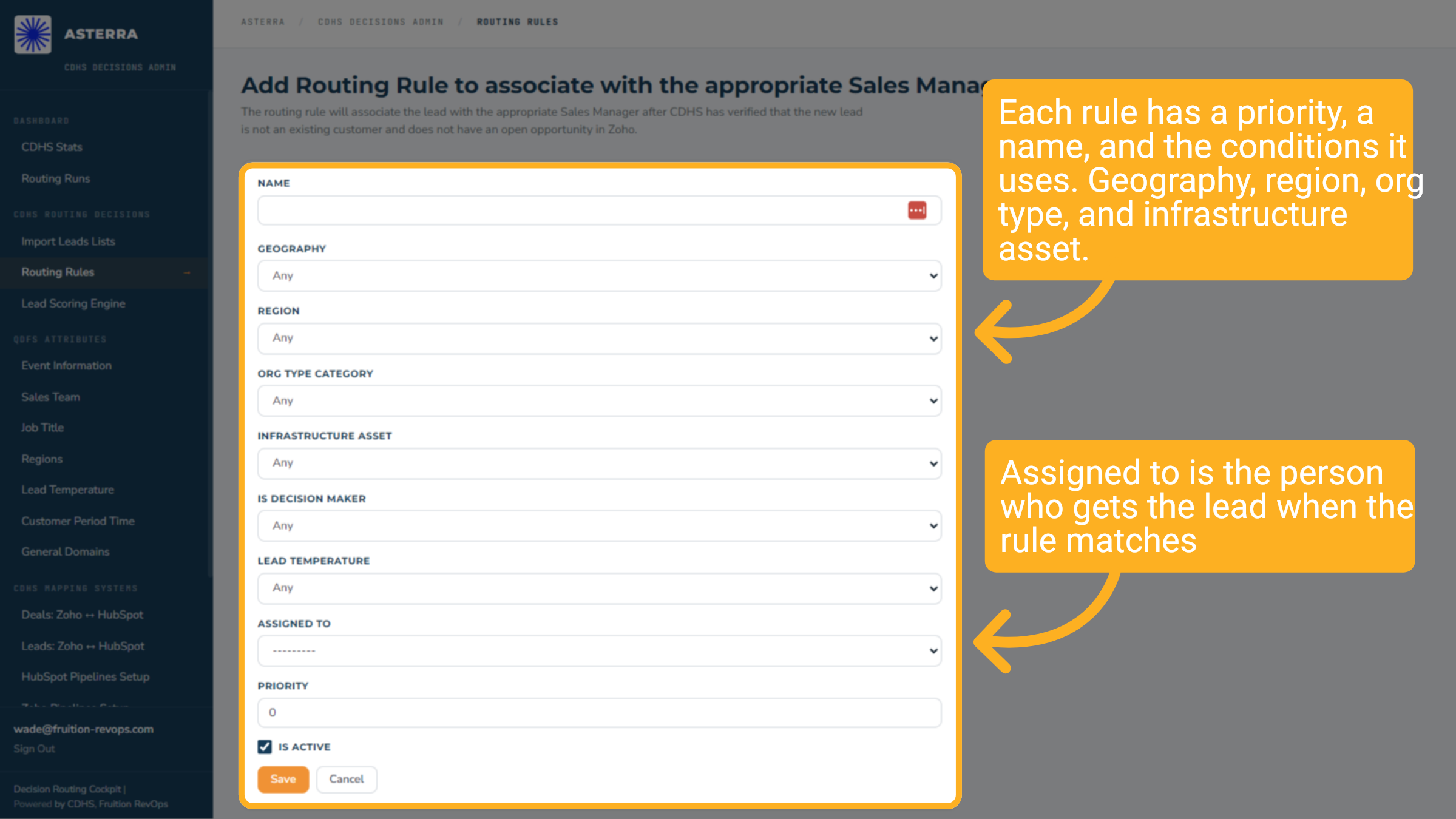
Each rule has a priority, a name, and the conditions it uses to assign. Give the rule a clear name, then set the conditions. Geography, region, org type category, infrastructure asset, whether the contact is a decision maker, and lead temperature. Leave any condition on Any if it should not matter. Choose who the lead is assigned to, and set the priority. A higher number is checked first. To stop a rule without losing it, untick "Is Active". It moves to the Inactive list and can be switched back on later.
5 Rule Optimization
Optimizing our routing rules is key. Before you add a rule, check whether an existing one can be widened instead.

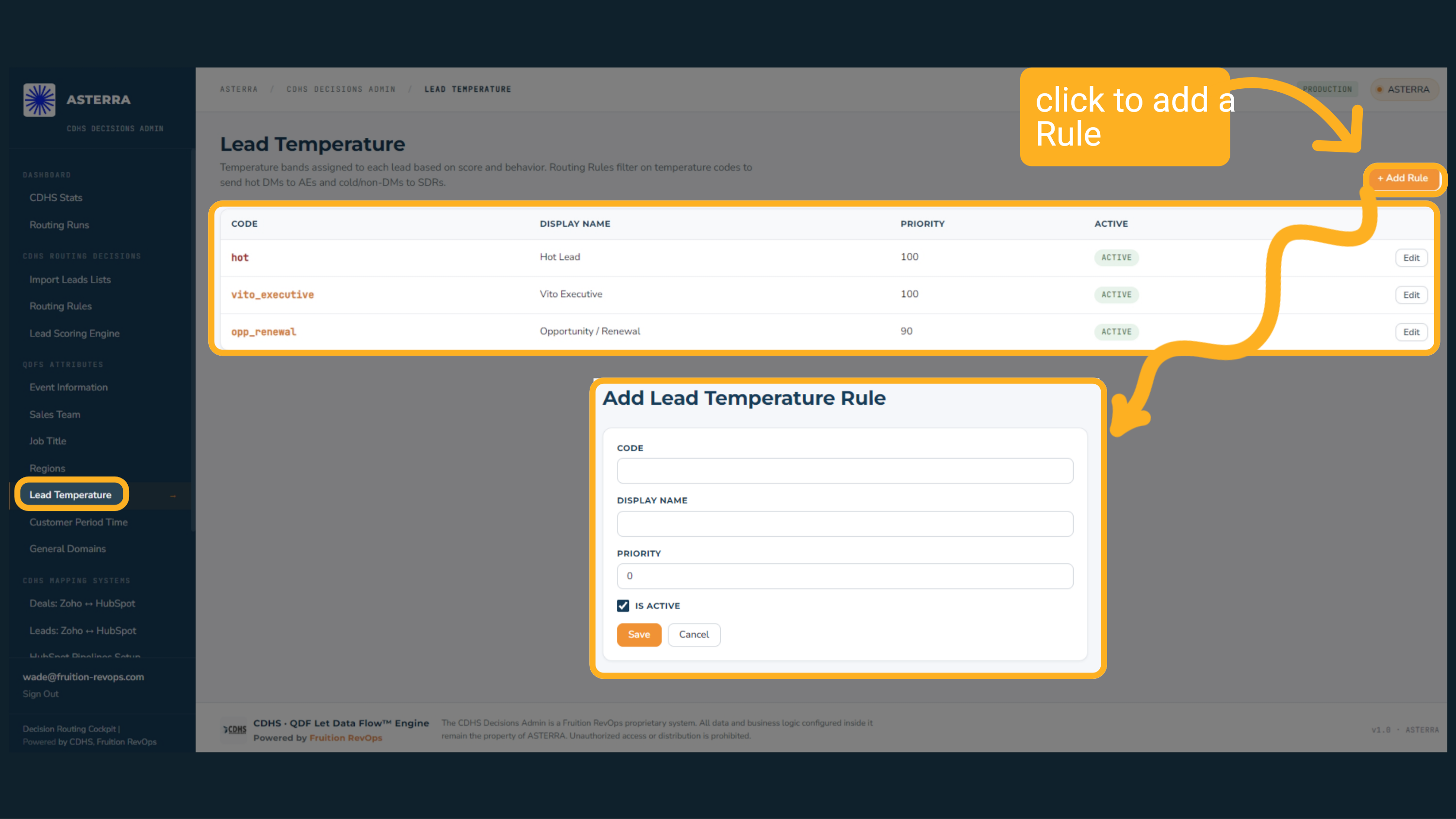
6 Lead Temperature
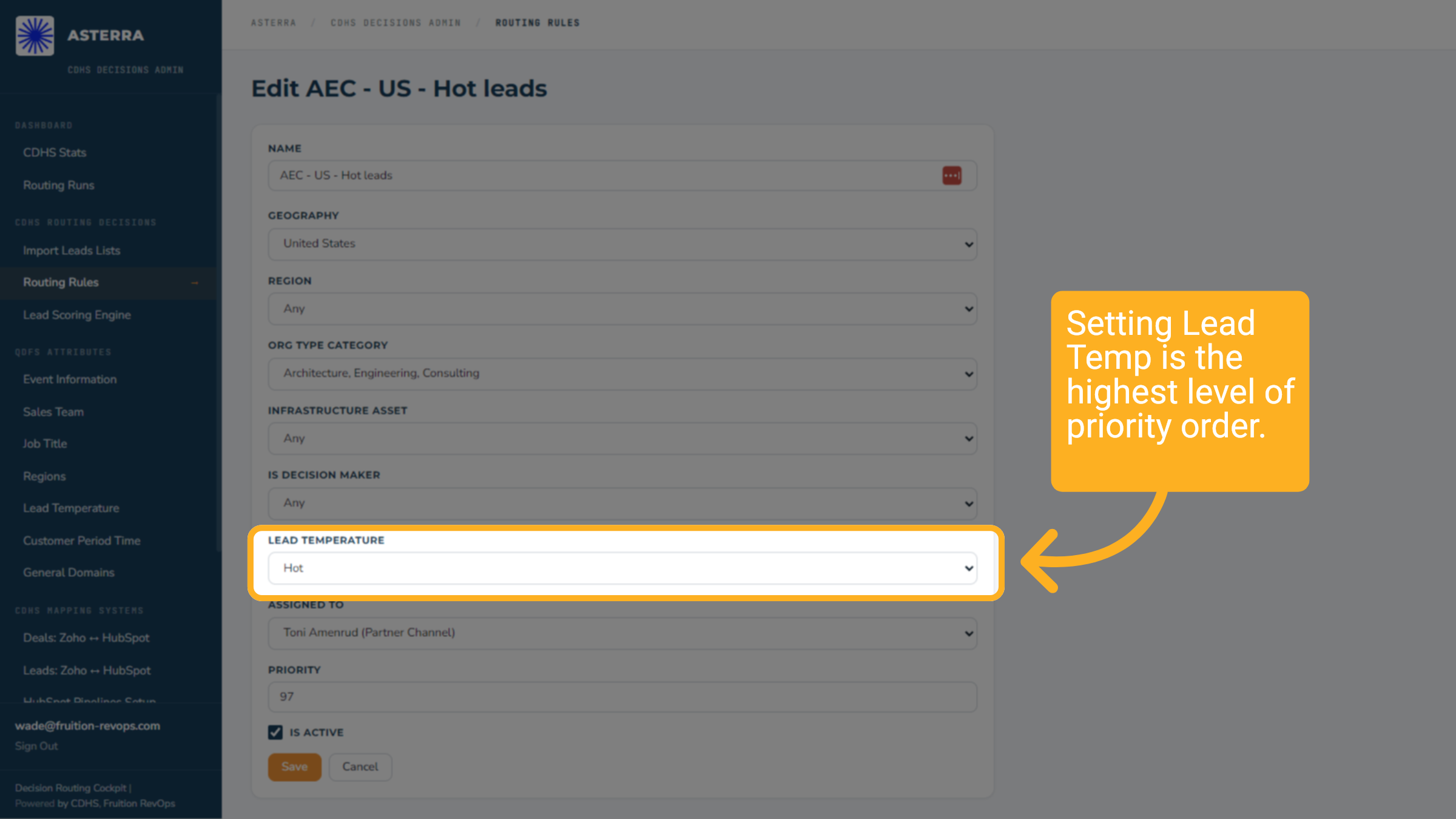
Setting the Lead Temperature is crucial and is regarded as the highest priority in routing procedures to ensure the correct person is assigned.
7 First match wins
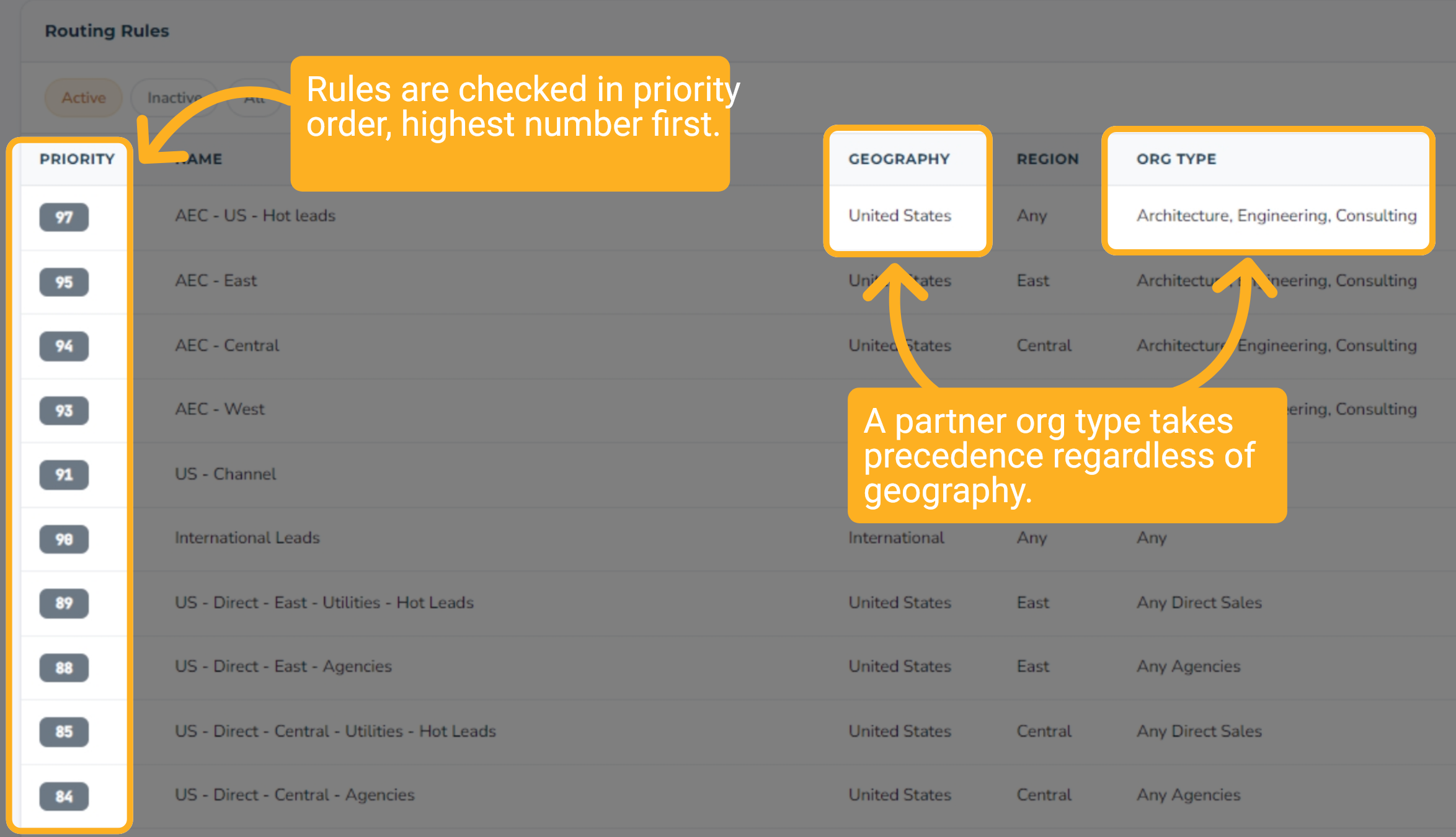
Rules are checked in priority order, highest number first. The first rule whose conditions all match assigns the lead to that owner, and the engine stops looking. Partner rules are the exception. A partner org type takes precedence regardless of geography.
8 Managing Active Routing Rules
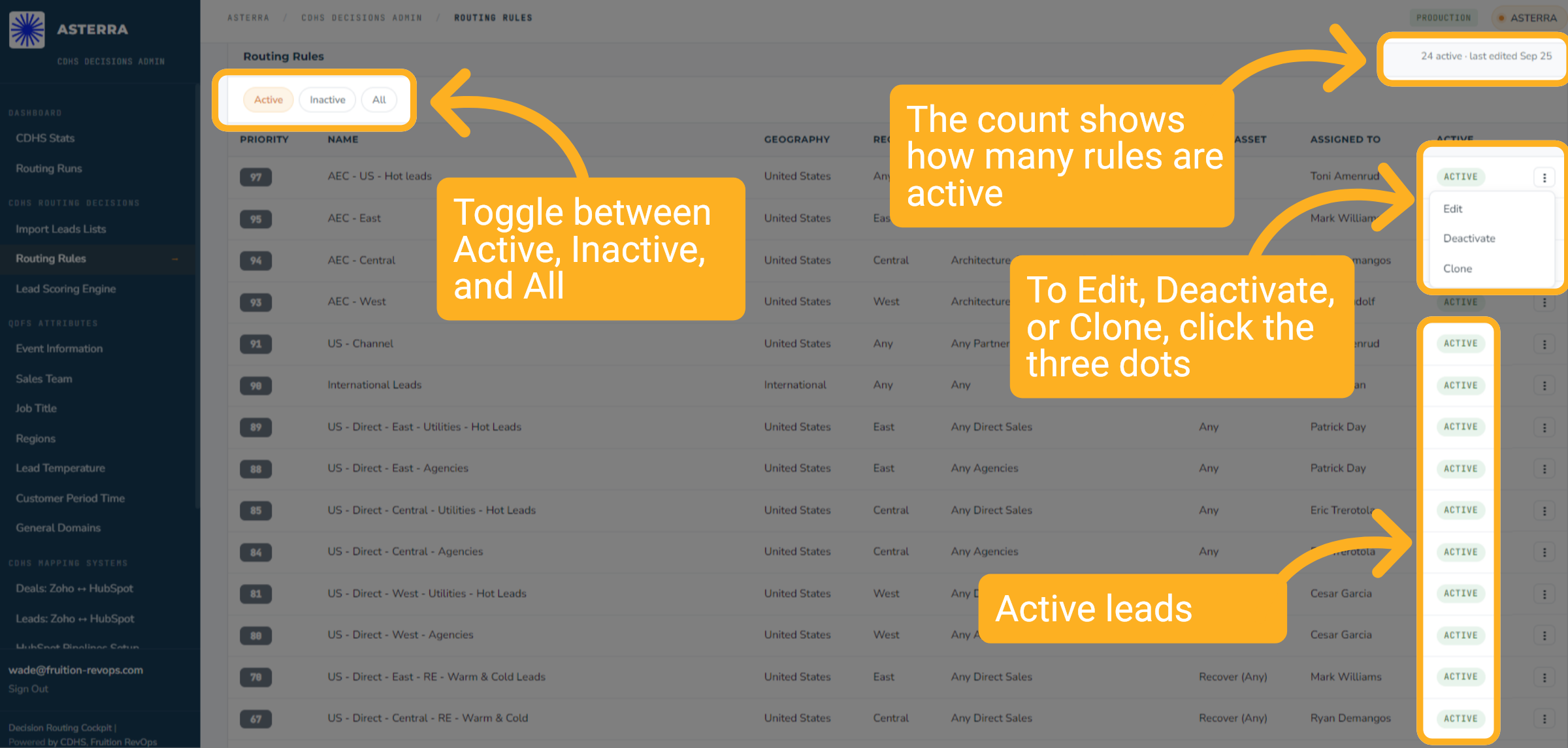
Use the Active, Inactive, and All tabs to view the rules currently running. The count in the top-right corner shows the number of active rules and when the set was last edited. To edit, deactivate, or clone a rule, click on the three dots.
9 Defining Routing Rule Criteria
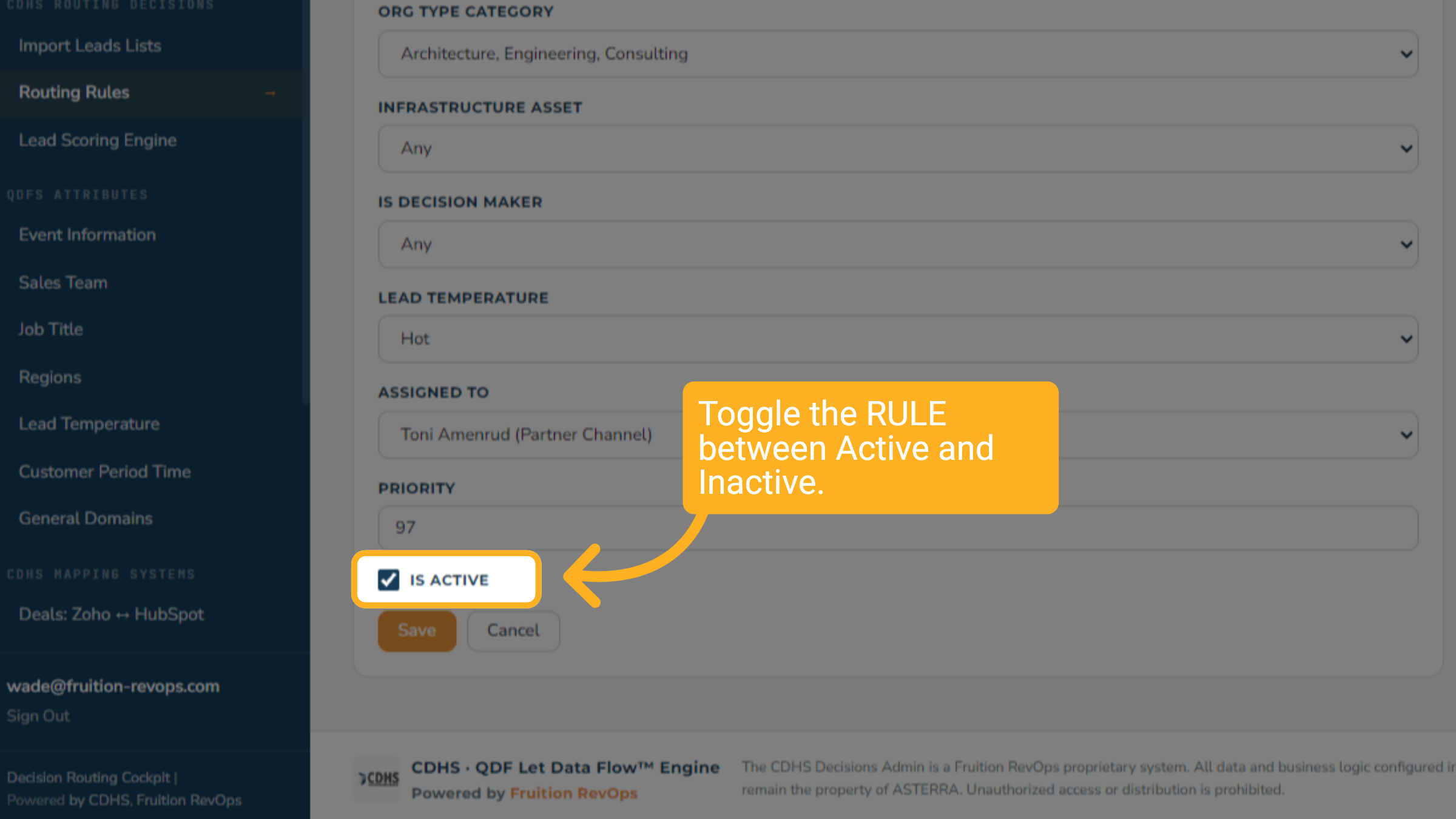
To stop a rule without losing it, untick Is Active. It moves to the Inactive list and can be switched back on later.
10 Importing Lead Lists
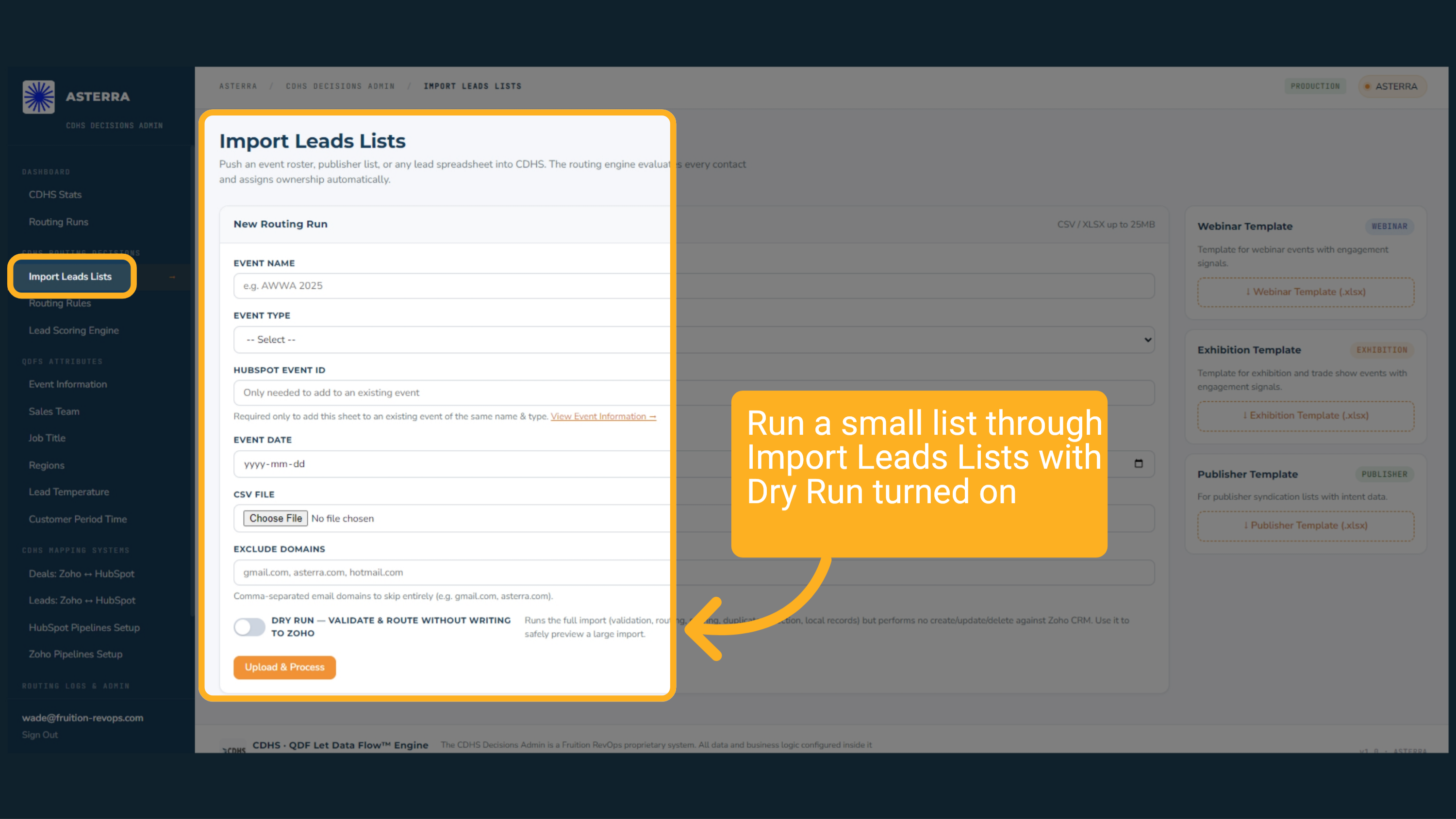
After you change a rule, test it. Run a small list through Import Leads Lists with Dry Run turned on, then check Routing Runs to confirm the leads went where you expected.
11 Dependent Data Lists
Rules can only route to people and places the CDHS knows about. Those lists live under QDFS Attributes in the left sidebar. Keep them current, or the rules that use them stop working.
12 Sales Team Roster
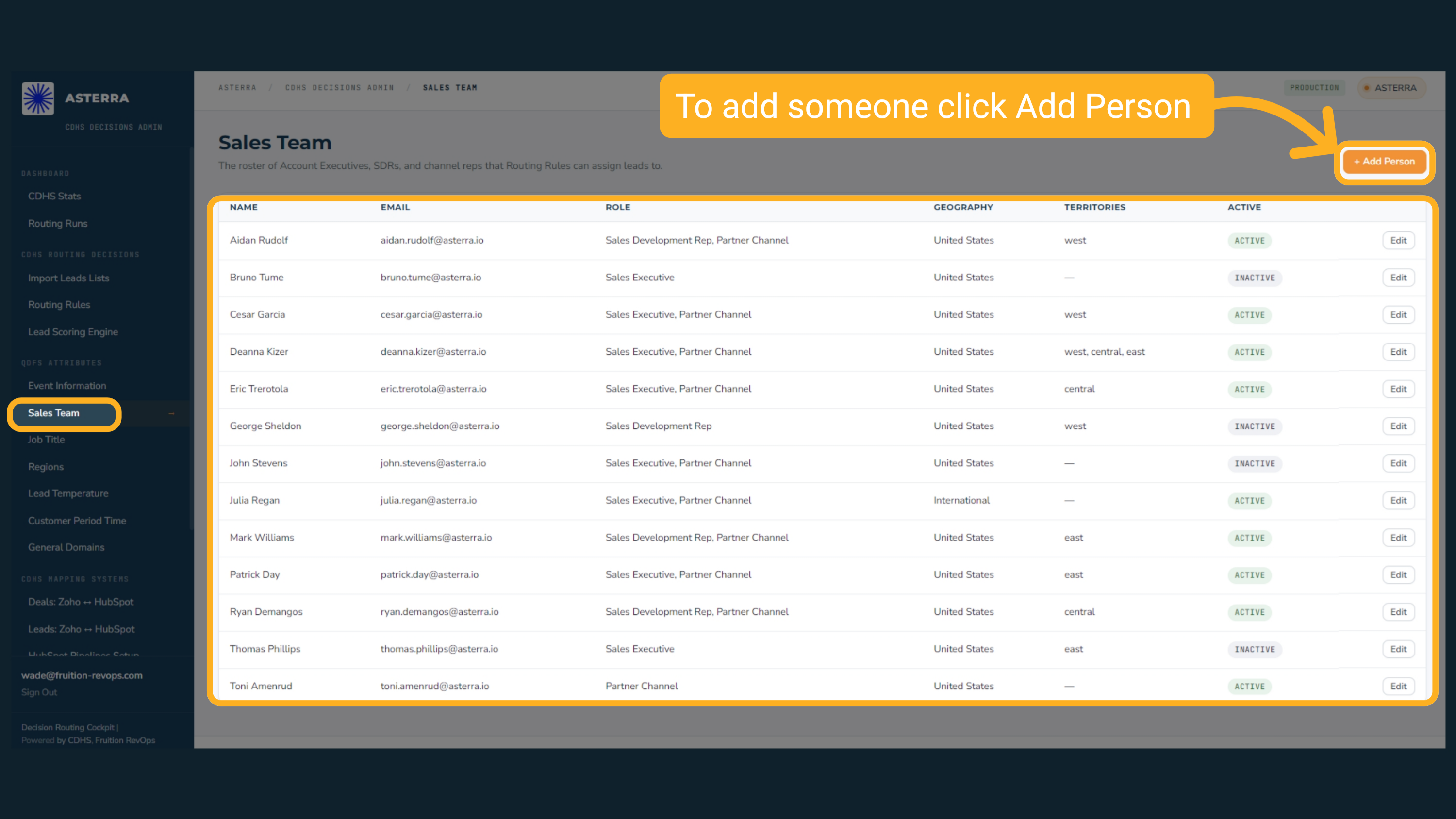
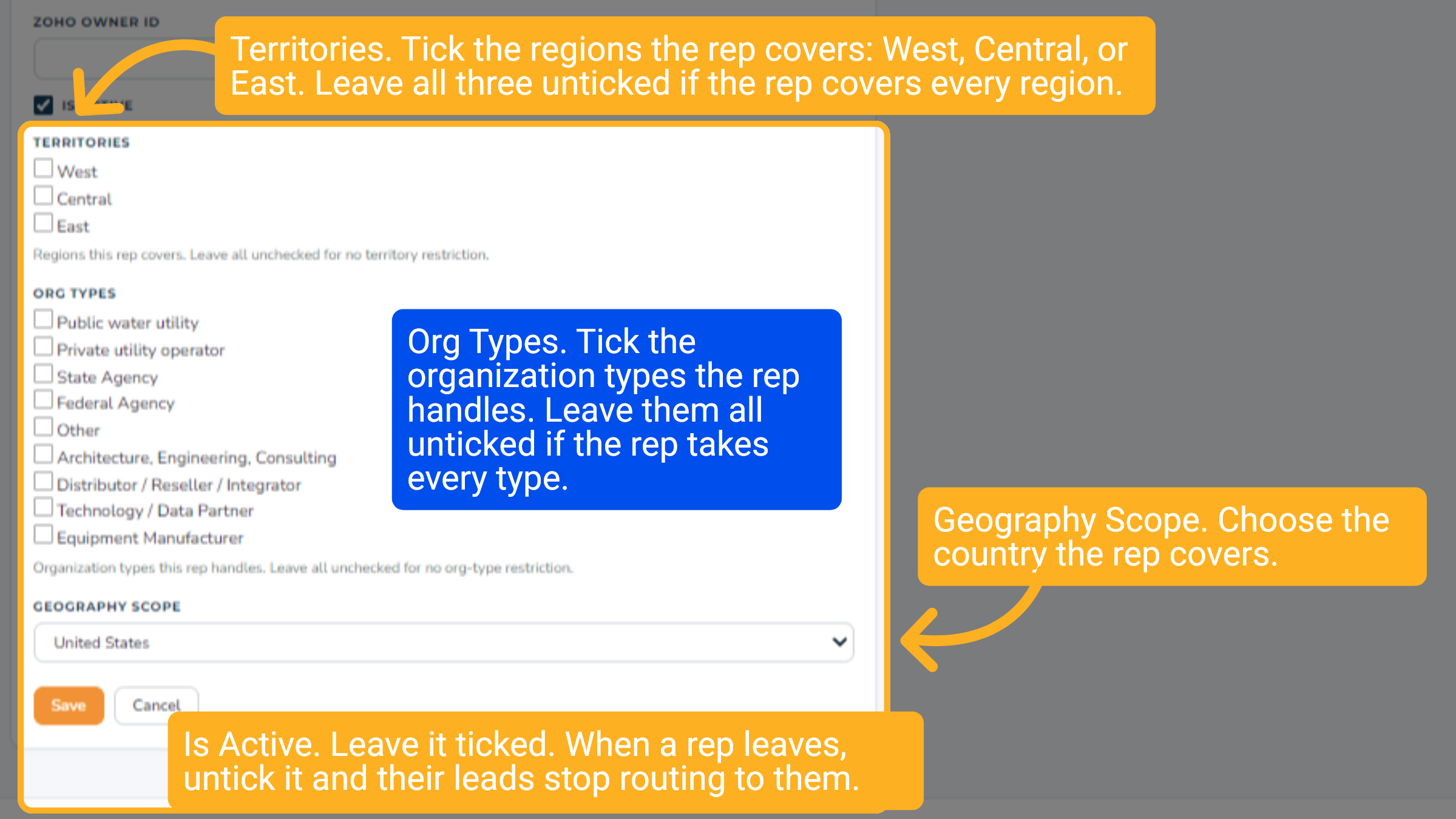
Sales Team is the roster of Account Executives, SDRs, and channel reps that routing rules can assign leads to. Each person has a role, a geography, territories, and an active status. Click Add Person when someone joins, and Edit to change their details.
13 Adding a salesperson
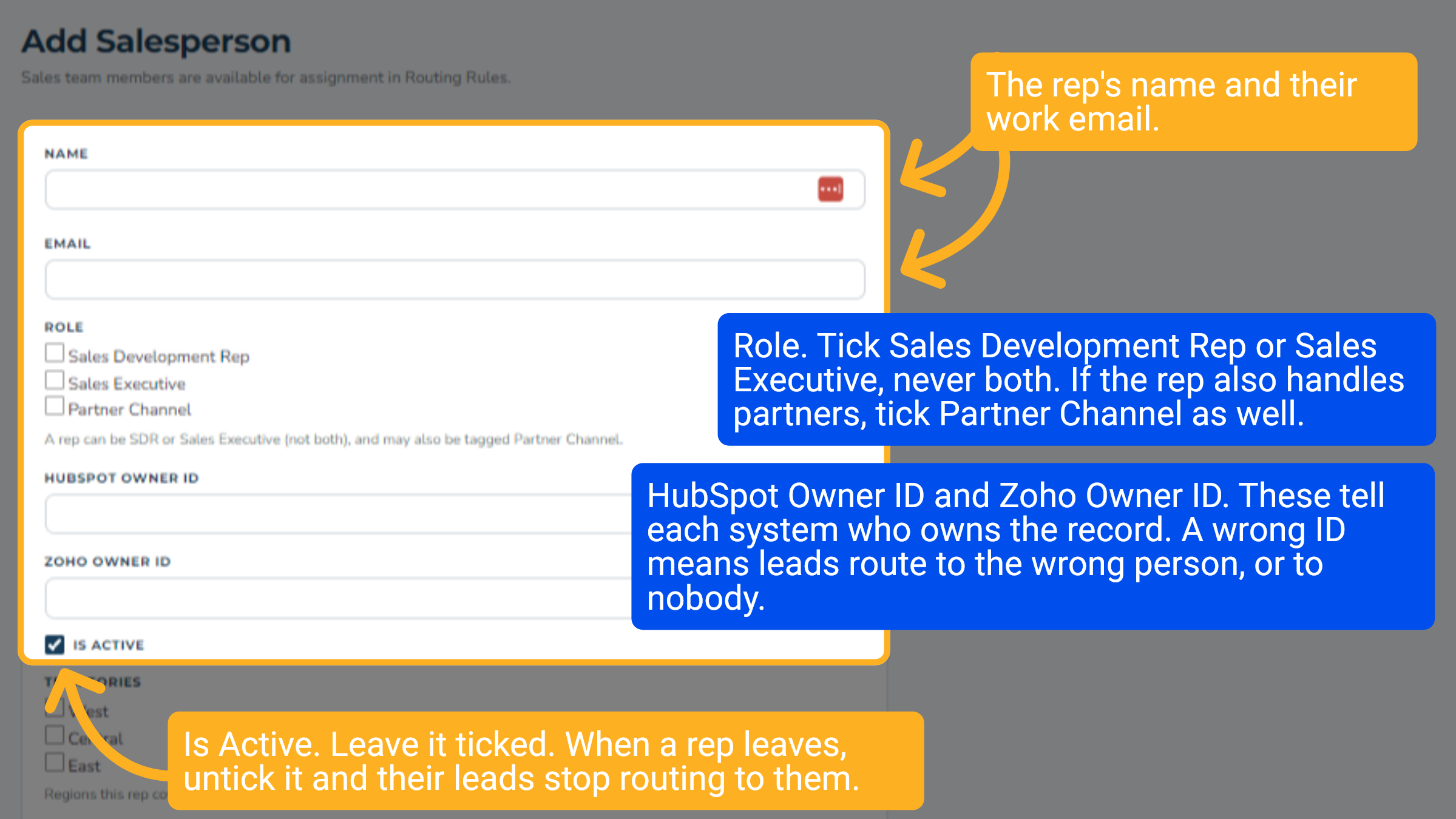
The routing engine can only assign leads to people on the Sales Team list. When a rep joins, add them here before you build or change any routing rule that names them.
14 Adding a salesperson
The routing engine can only assign leads to people on the Sales Team list. When a rep joins, add them here before you build or change any routing rule that names them.
15 Managing Geographic Regions
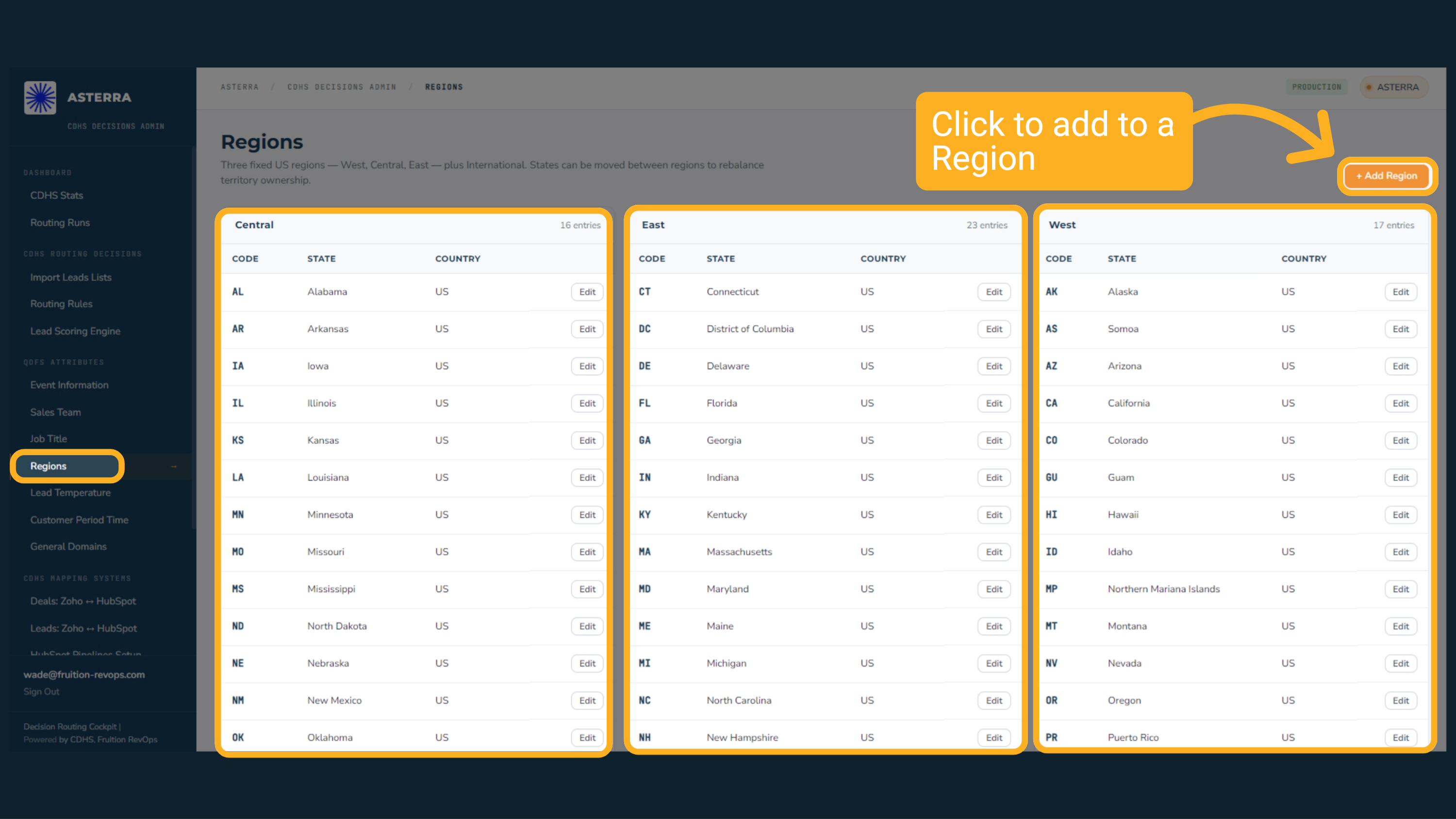
There are three fixed US regions, West, Central, and East, plus International. Each region lists the states and territories it covers. To rebalance territory ownership, click Edit on a state and move it to another region. Click Add Region to add a state or territory that is missing.
16 Add Region
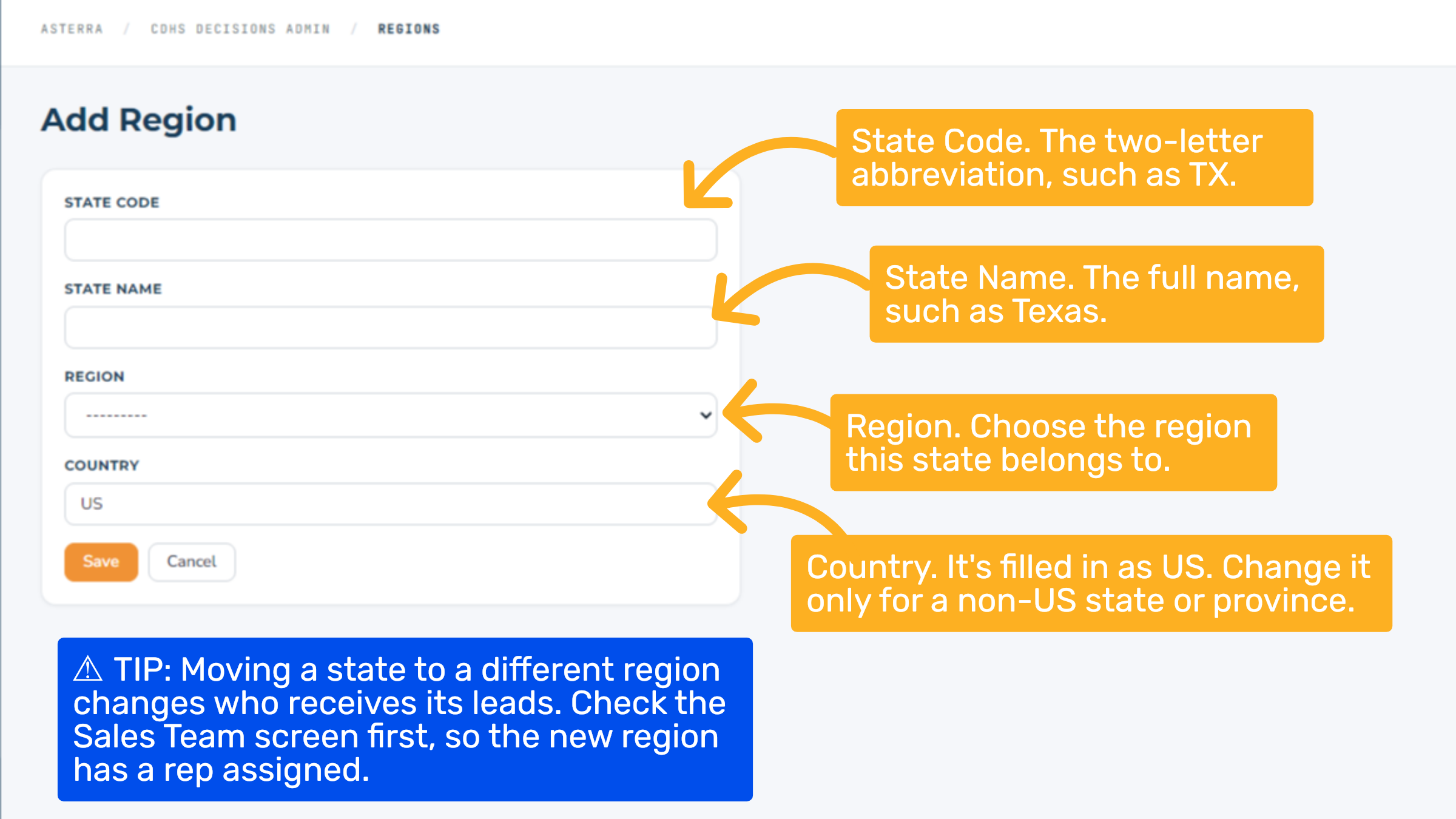
The routing engine uses regions to decide which rep covers a lead's state. Each state belongs to one region (West, Central, or East). Reps are assigned to regions on the Sales Team screen. If a state is missing here, a lead from that state can't be matched to a territory. TIP: Moving a state to a different region changes who receives its leads. Check the Sales Team screen first, so the new region has a rep assigned.
17 Job Title Pattern Matching
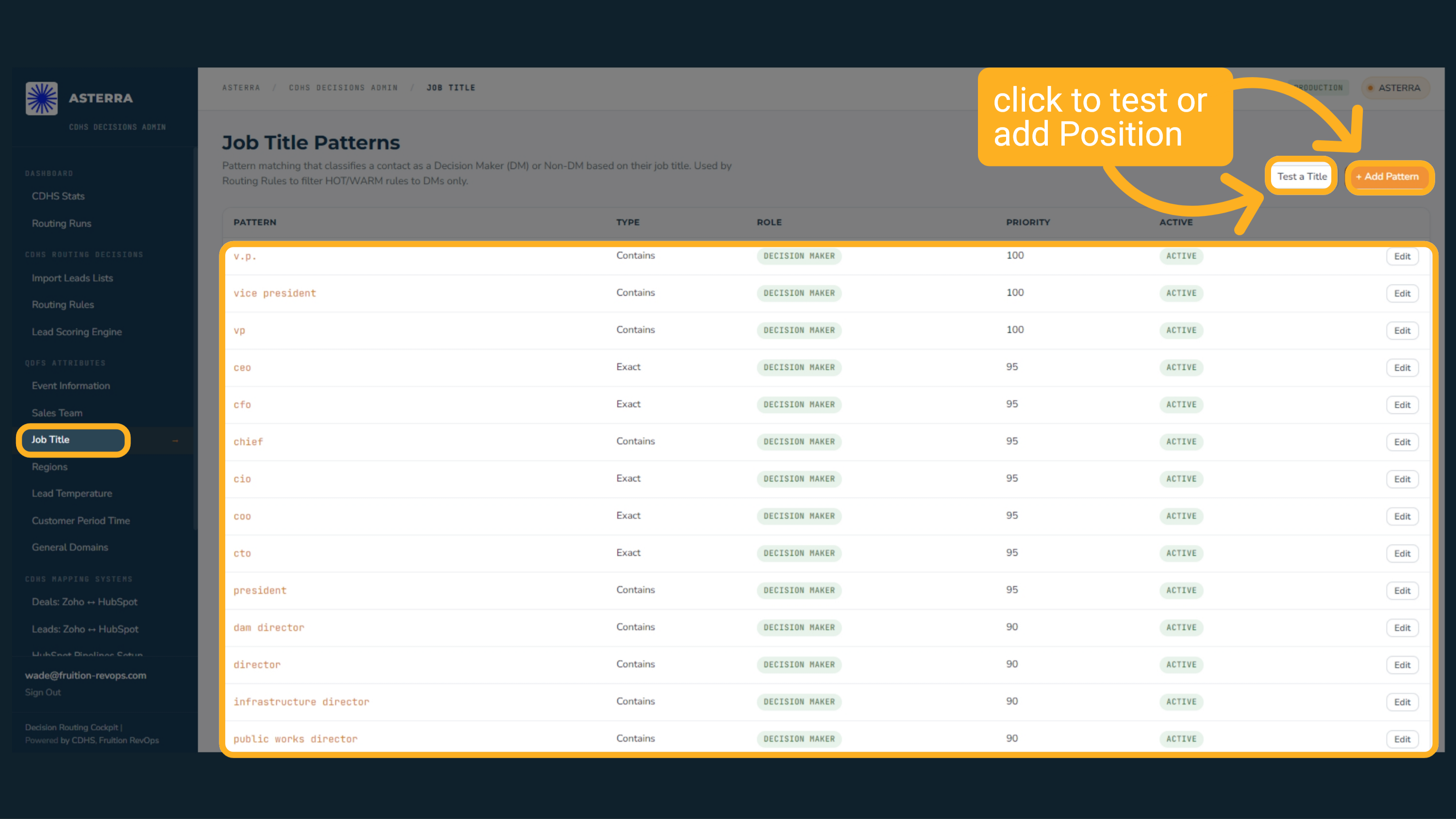
Job Title Patterns decide whether a contact is a decision maker. Each pattern matches part of a job title, such as v p, director, or chief, or the exact title, such as C E O. Routing rules use this to send hot and warm leads only to decision makers. Click Test a Title to check how any title will be classified before you add a pattern.
18 Lead Temperature Bands
Lead Temperature is the band each lead gets, based on its score and behavior. Hot, Vito_Executive, and Opp_Renewal. Routing rules filter on these, so hot decision makers go to Account Executives, and cold leads and non decision makers go to SDRs.
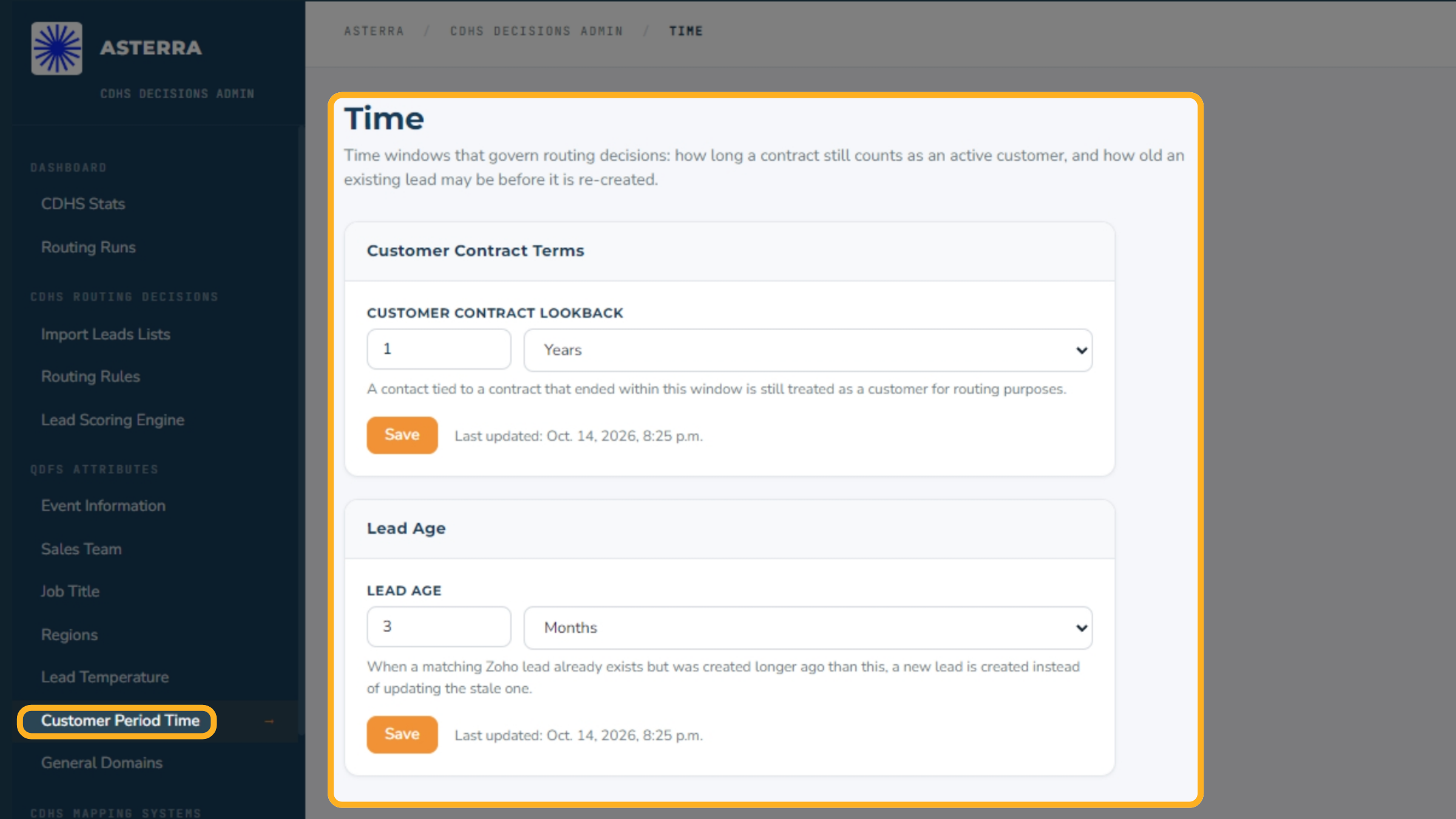
19 Customer Contract Terms and Lead Age
Customer Period Time holds the two time windows the gatekeeper uses. Customer Contract Lookback is how long after a contract ends that the contact still counts as a customer. It is set to one year. Lead Age is how old an existing Zoho lead can be before a new lead is created instead of updating the old one. It is set to three months. Change a value and click Save.
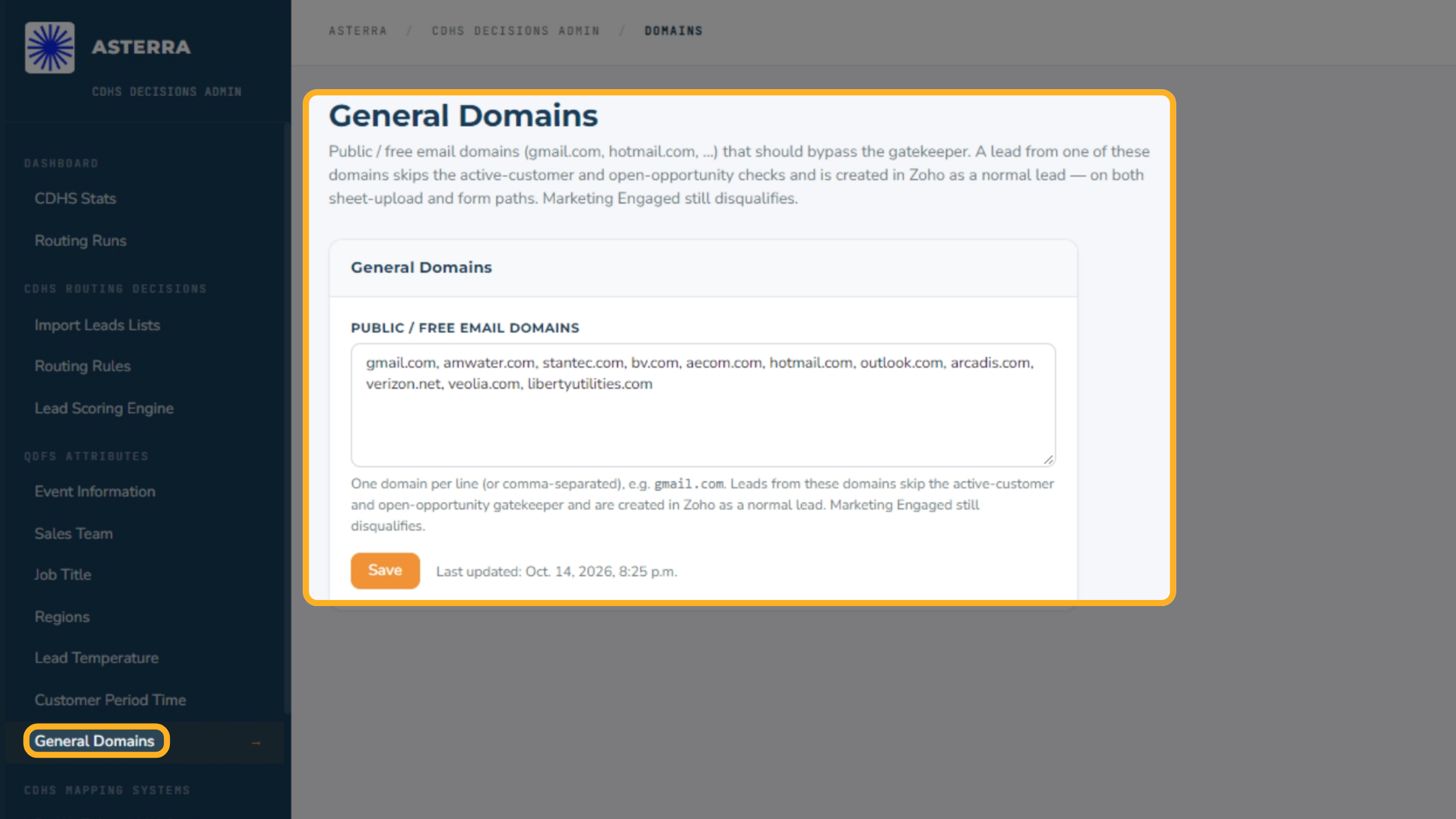
20 Managing General and Free Email Domains
General Domains lists email domains that skip the customer and open opportunity checks. That covers free email like gmail dot com, plus a few large organizations added to the list. Leads from these domains are created in Zoho as normal leads, from both imports and web forms. A contact marketing has already disqualified is still disqualified. Add domains separated by commas, then click Save.
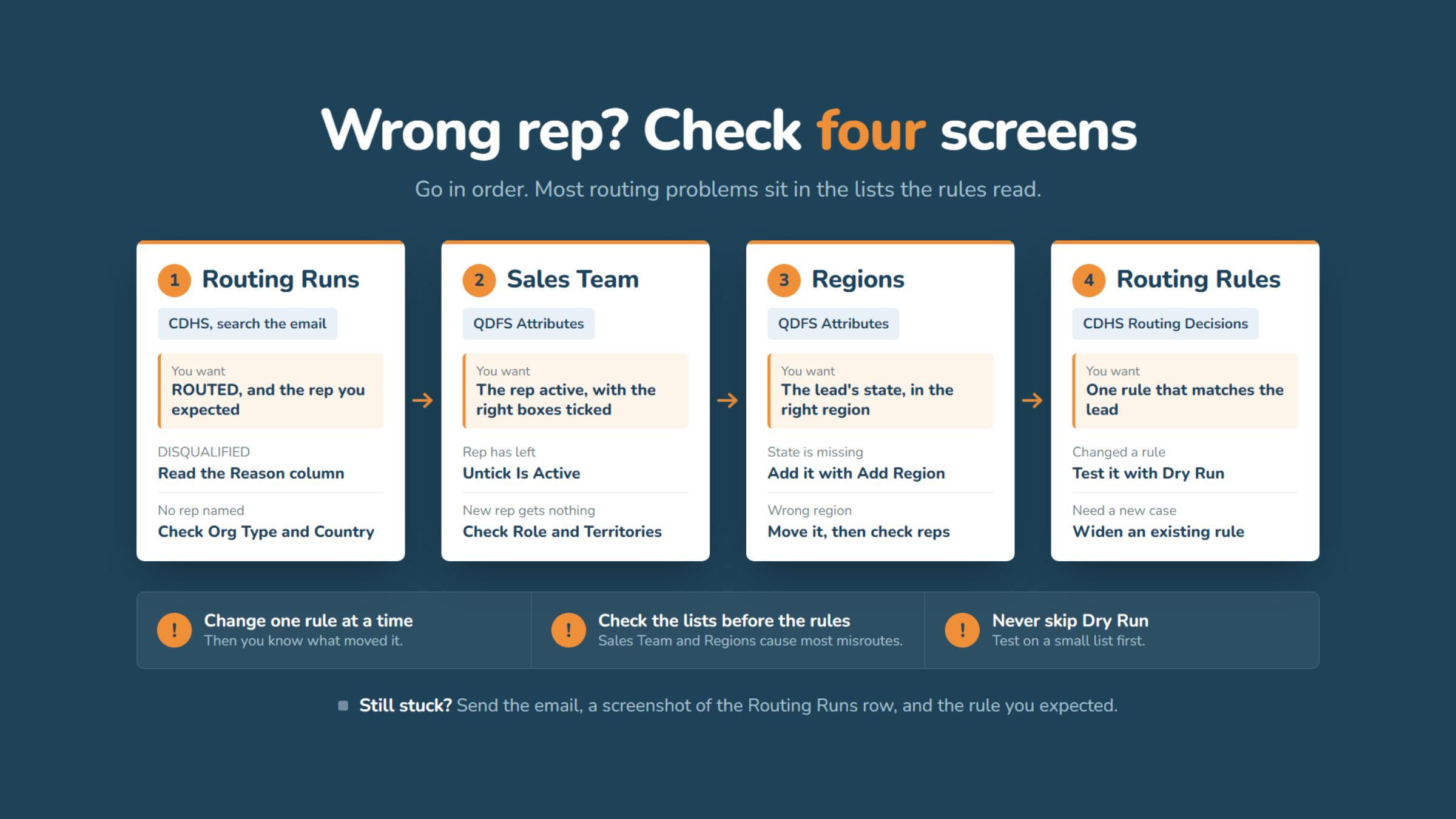
21 Troubleshooting the routing engine
Lead went to the wrong rep, or to no rep? Check these four screens in order. Most problems sit in the lists the rules read, not the rules themselves.
1. Routing Runs. Search the email. DISQUALIFIED is usually normal, so read the Reason. No rep named? Check Org Type and Country for typos.
2. Sales Team. Is the rep active, with the right boxes ticked? Untick Is Active when someone leaves.
3. Regions. Is the lead's state listed, and in the right region? Add or move it.
4. Routing Rules. Check these last. Test every change with Dry Run, and widen an existing rule rather than adding one.
Still stuck? Send the email, a screenshot of the Routing Runs row, and the rule you expected.
The Routing Engine is a sophisticated system that automates lead assignment based on priority rules and various lead attributes. It ensures efficient lead distribution, prevents duplicates, and optimizes sales efforts by directing leads to the most appropriate team members.